The Grid View Menu is opened by clicking the icon just to the right of the Grid View selector. The icon is marked with a red box in the following picture:

When opened, the menu displays options to control the grid view:
•Automatic Grid Views for Scenes
•Reset Displayed Props And Groups
•Reset Displayed Beat Channels

The Grid View menu
Add New View
This menu item will open a dialog where you can enter:
•The name for the new grid view
•Whether this grid view will be affiliated with the sequence or the preview.
•The props and groups that will be part of this grid view. This section works the same as the Insert Props And Groups Dialog.
When you are done, click the Save button.
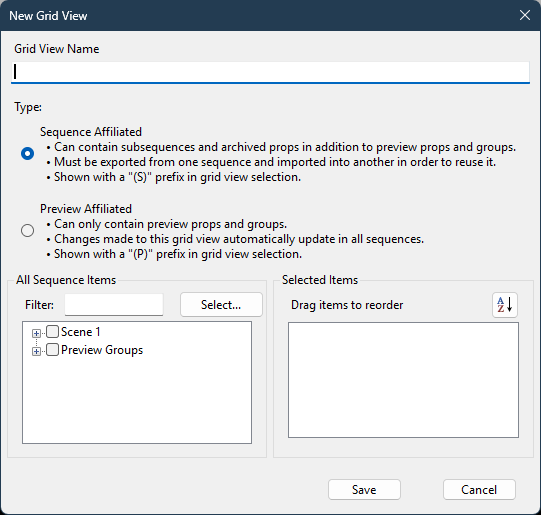
The New Grid View dialog
Rename View
This menu item allows you to enter a new name for the current grid view
Save View As
This menu item prompts for the name of a new grid view. It then copies the current grid view into the new one.
Delete View(s)
This menu item displays a displays a dialog where you can choose one or more grid views to delete from the sequence. Click the check boxes next to the grid views you wish to delete.The current grid view will be checked by default. Clicking the "Select All" check box will select all grid views. Clicking it again will clear all check boxes.
You cannot delete the "Show All Items" grid view, as it is system-generated.

The Delete Grid Views dialog
Convert To Preview-Affiliated Grid View (or Convert To Sequence-Affiliated Grid View)
Convert To Preview-Affiliated
This menu item is shown when a sequence-affiliated grid is currently selected - one with an "(S)" prefix. Choosing this option will convert the grid view to a preview-affiliated view -- and will be immediately available in any other sequence that uses the same preview. Archived props and subsequences will be dropped from the grid view without warning.
Convert To Sequence-Affiliated
This menu item is shown when a preview-affiliated grid is currently selected - one with an "(P)" prefix. Choosing this option will convert the grid view to a sequence-affiliated view -- and will be immediately dropped from any other sequence that uses the same preview.
Automatic Grid Views for Scenes
This menu item opens a dialog that allows you to select which scenes should have an automatic grid view created for them. These views will automatically synchronize additions and removals of props and groups in the scene.
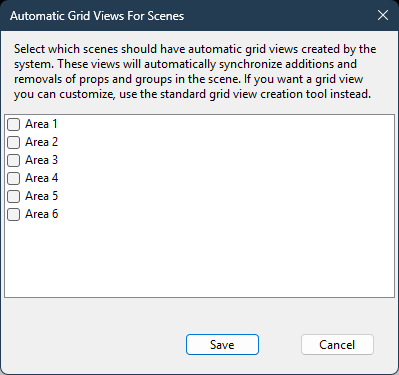
The Automatic Grid Views For Scenes dialog
Append Items To View
This menu item opens the Insert Props And Groups Dialog, and then appends the selected items to the bottom of the current grid view. Does not apply to the "Show All Items" grid view.
Reset Displayed Props And Groups
This menu item opens the Insert Props And Groups Dialog, and then replaces the items in the current grid view with the ones selected in the dialog. Does not apply to the "Show All Items" grid view.
Reset Displayed Beat Channels
This menu item opens a dialog that allows you to select amongst the beat channels defined in the sequence. The newly selected beat channels replace any that are currently displayed in the grid.
Add New Sub-menu
This menu item opens a sub-menu that allows you to add a new a loop row, subsequence, beat channel, or RGB aggregate.
Sort Item List
This menu item opens the sort dialog, allowing you to reorder the item list. It sorts the top level of the item list. For each category of item, click the radio button according to your desired sort priority. "1" means it sorts to the top; "6" means it sorts to the bottom. Items at the same sort priority will be intermixed and sorted together alphabetically.

The Sort Item List Dialog
Other ways of reordering the item list include:
•Dragging an item and dropping it in its new position in the list.
•Right-clicking on a channel name and selecting "Sort Channels" from the pop-up menu.
Condensed View
This menu item toggles the condensed mode on and off.
Show Tree Lines
This menu item toggles the display of tree lines in the item list.
Expand All
This menu item causes all children for every item in the item list to be displayed.
Collapse All
This menu item causes all children for every item in the item list to be hidden.
Beat Channel Row Count
This menu item opens a dialog that allows you to modify the maximum number of beat channels that are displayed. The default is 10.
Grid Configuration Sub-menu
This item opens a sub-menu allowing you import or export the sequence-affiliated (S) grid views. The system-generated "Show All Items" grid view is not included in the export.

Grid Views in a sample sequence
So in the example shown above, "View 1", "View 2", "View 3", and "View 4" would be included in the export file.
The export file will also include the properties of each motion effect row. This is useful if you have created motion rows for subsections of a prop or group. Not all license levels allow you to create motion rows.