General
See the General tab in Control Panel help.
Date & Time
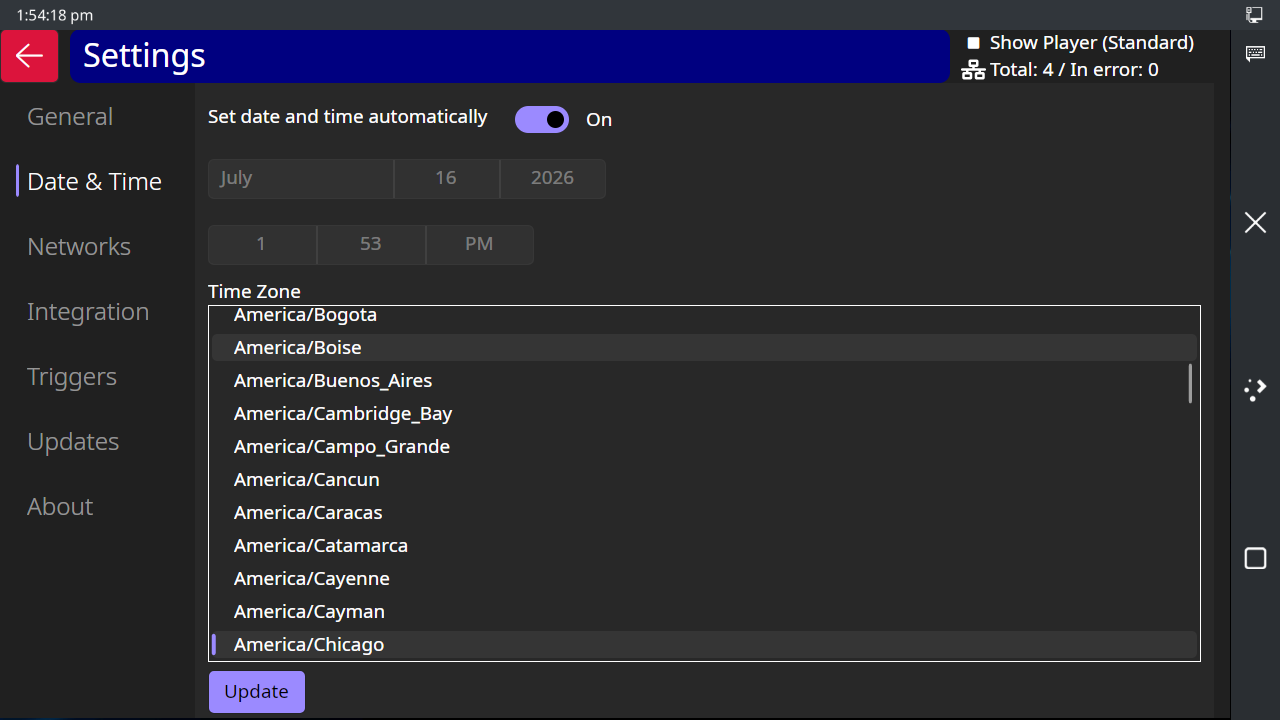
On this screen, you can set your time and time zone. You can either choose to have the time updated automatically (whenever there is an Internet connection), or you can set it manually. Set the toggle on the top row accordingly. If it is off, you will be able to enter the date and time by tapping the 2 fields below the toggle.
The bottom portion of the screen lists cities by region. Select a city in your time zone.
After changing any field on this screen tap the "Update" button to save your changes.
Networks
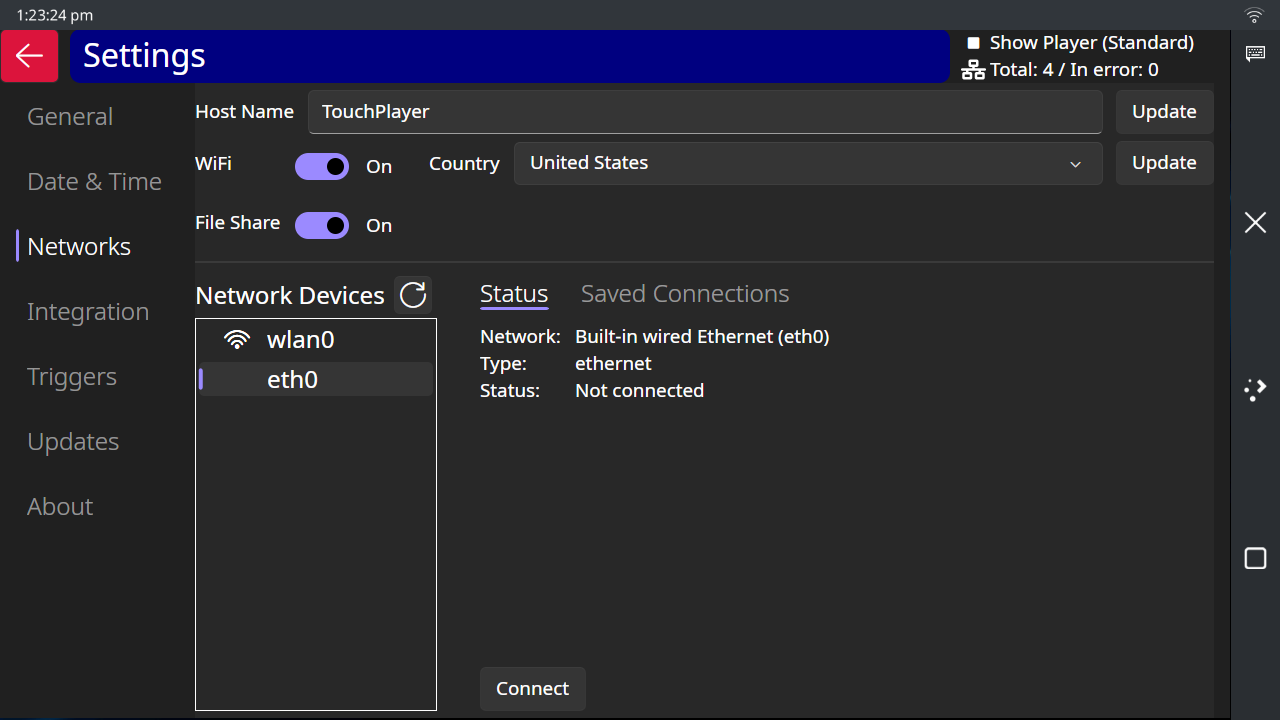
On this screen you can configure the Ethernet connection (eth0) and the Wi-Fi connection (wlan0).
Host Name
At the top of the screen is the host name - this is the name of the device that appears when you search for it on your home network. If you change it, tap the "Update" button to the right of the field to save the new name.
Wi-Fi on/off
Use the Wi-Fi toggle button to turn your Wi-Fi connection on or off. This can also be done from the Quick Menu.
Wi-Fi Country
Select the country where you are located from the drop-down. This ensures that the device operates on the proper frequencies and with the correct power for the regulations in your country. After making a change, tap the "Update" button to the right of the field to save it.
This enables the Documents/Light-O-Rama folder to be shared over the network - making it easy to move files onto your Touch Player. It also shares the Pictures/Screenshots folder. Before you enable sharing, you will want to connect to your local network first - see the Wi-Fi or Wired Ethernet topics below.
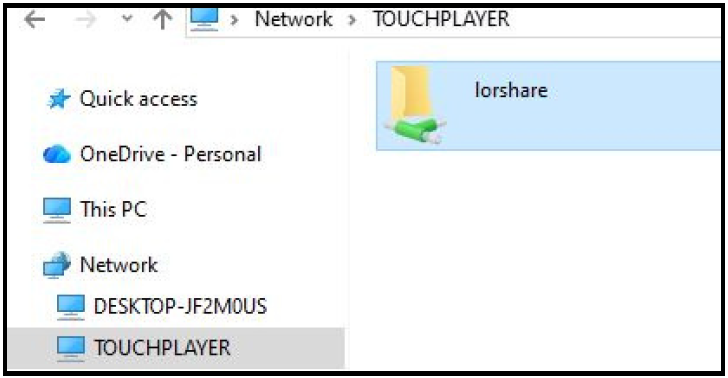
To connect to the Touch Player from your computer, your computer and the Touch Player must be on the same network. Then open Windows File Explorer. Under “Network,” enable Network Discovery. The Touch Player will appear with a folder labeled “lorshare.”
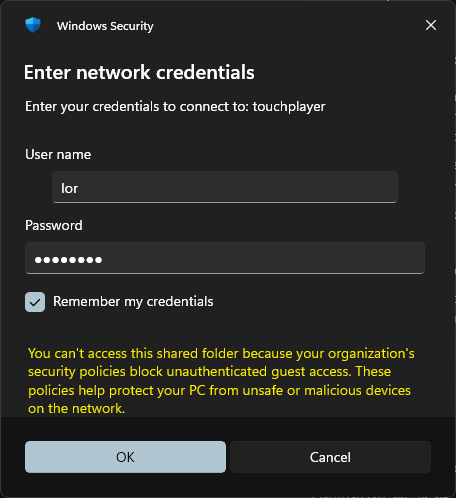
The first time you connect, you will be prompted for a user name and password. The user name is lor and the password is lorsamba. Check the "Remember my credentials" box so you don't have to enter the password again.
To configure the Wi-Fi connection, tap "wlan0" in the Network Devices list. Then tap the "Scan Wi-Fi" button at the bottom of the screen. A list of available Wi-Fi networks will be shown. Click the "Connect" button adjacent to the network you wish to connect to. You will be prompted for the network password. Tap inside the password box - this will bring up the on-screen keyboard. Enter the password, then tap the enter key.
If your Wi-Fi network is not displayed, or you can't connect to your network because it uses a more complicated setup, then open the Quick Menu and long-press the Wi-Fi box. That will open the system settings for Wi-Fi and you can connect from there.
To configure the wired Ethernet connection, tap "eth0" in the Network Devices list. If it hasn't been connected before, a "Connect" button will be shown at the bottom of the screen - click it to start connecting. Select whether you want the IP address to be assigned automatically (DHCP) or manually (static IP). If you are assigning a static IP address, you will need to enter a valid value for each field. When you are done, click the "Save" button at the bottom of the screen.
Integration
See the Integration tab in Control Panel help.
Triggers
The Touch Player's 10-pin header allows 6 inputs to be connected. The pin-out is compatible with the LOR N4G4 director and you can find a screw terminal block in the Light-O-Rama Store to help in making your connections. The triggers can be used to start a show or to control an interactive show. If you need more triggers, you can connect a Light-O-Rama Input Pup to one of the RS-485 ports.
Each of the 6 built-in triggers can be configured as a normally-open or normally-closed input in Settings > Triggers. See the example below for an explanation. Furthermore, triggers have an address, which consists of a network, unit id, and circuit. The built-in triggers are assigned network "Aux O", unit F0, circuits 1-6.
The following diagram shows the connection of a normally-closed motion detector switch (‘A’ trigger 1) and a normally-open momentary contact switch (‘B’ trigger 2):
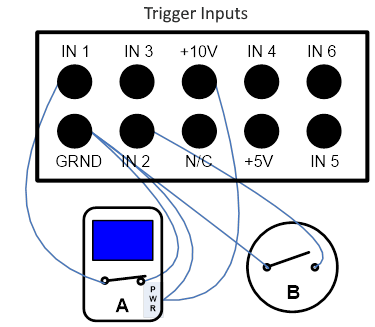
The input pins (‘1’ through ‘6’) are pulled to +5v with an on-board resistor. One or more of these input pins is connected to the GRND pin through your trigger switches.The preceding diagram shows both trigger switches in their ‘off’ (untriggered) position.
These inputs can be configured at Settings > Triggers for:
•normally open switches (NO) meaning that the switch closes the circuit when activated or
•normally closed switches (NC) meaning the switch opens the circuit when activated. Most motion detectors contain NC switches.
Both +10 volts DC and +5 volts DC are provided at this connector to power external devices. Maximum total current draw is 500 mA.
Go to Settings > Triggers and set Trigger 1 as "normally Closed" and Trigger 2 as "normally Open".
•To start a show using the motion detector (trigger 1), go to Show Options, select "Start on trigger", and set the trigger address to Aux O, unit id F0, circuit 1.
•To start a show using the switch (trigger 2), go to Show Options, select "Start on trigger", and set the trigger address to Aux O, unit id F0, circuit 2.
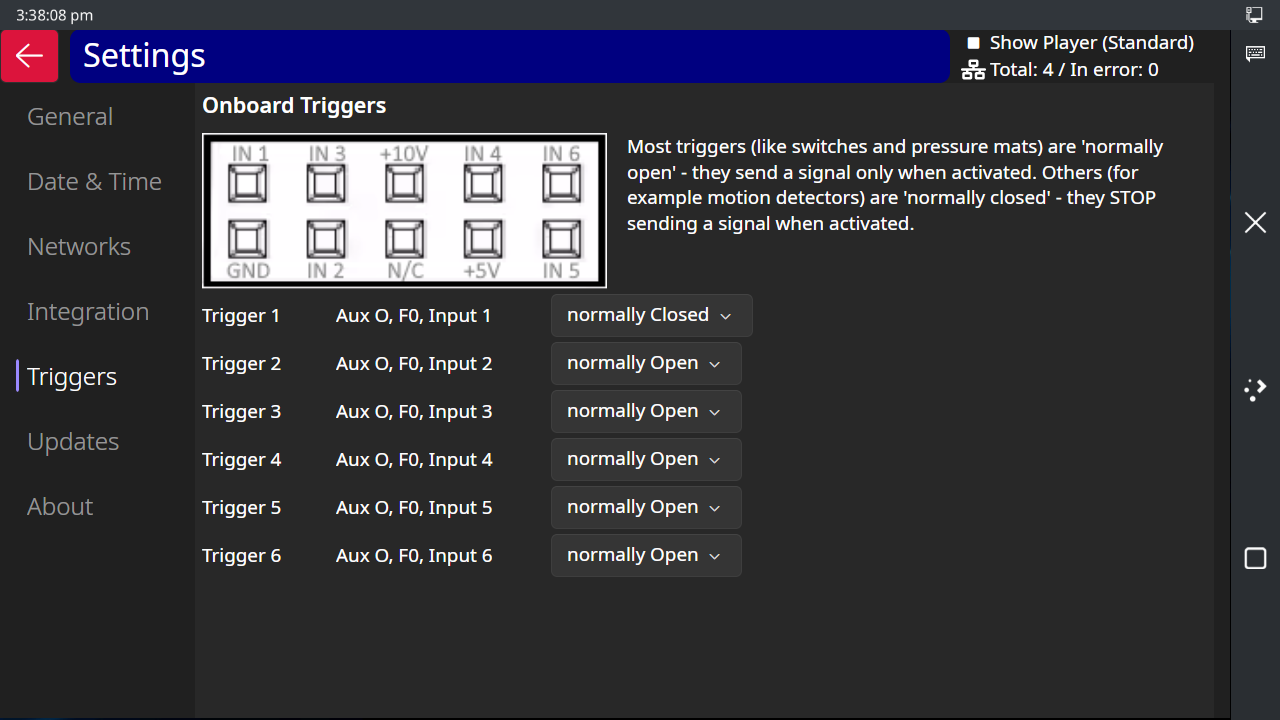
Settings > Triggers
Updates
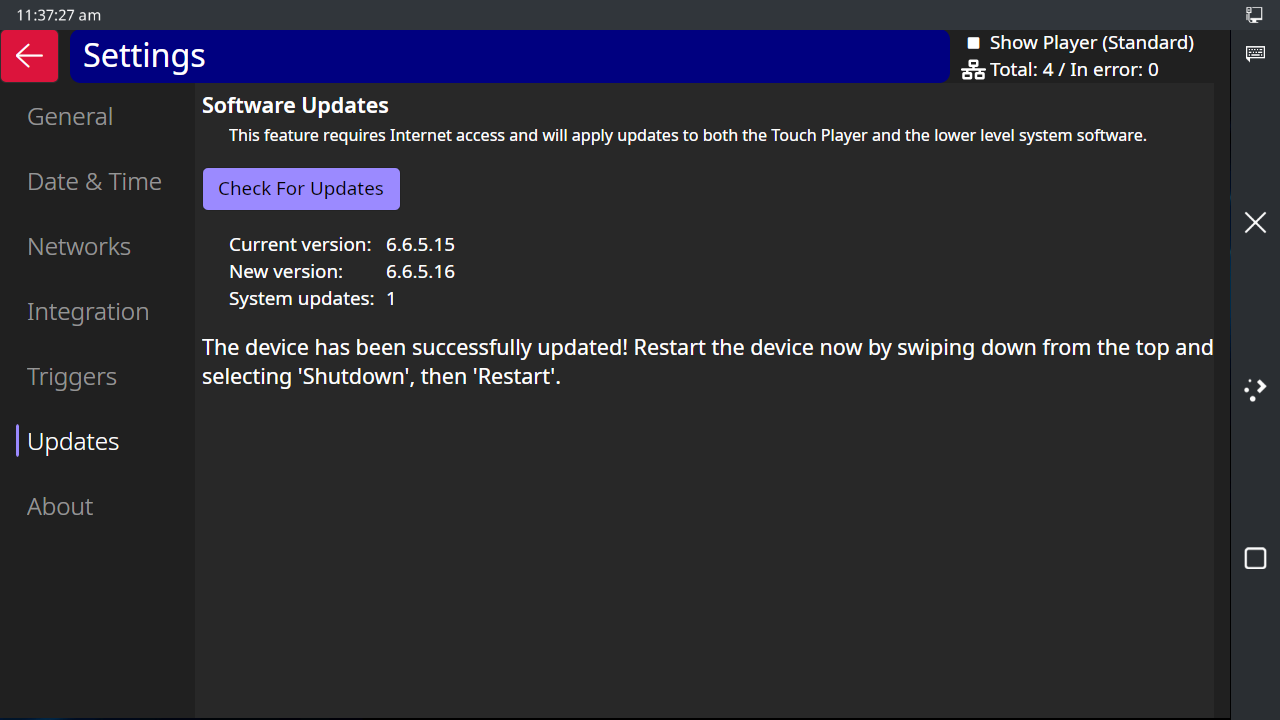
From time to time, Light-O-Rama may release an updated Touch Player app for this device. There may also be updates to the system software that become available. You can use this screen to update both.
•Ensure the device is connected to the Internet - either via Wi-Fi or a wired Ethernet connection.
•Initiate the process by tapping the "Check For Updates" button. This may take 10 seconds or more. You will see a spinning circle while it is checking.
•If there is a new version of the Touch Player app, and/or new system updates, you will see an "Apply Updates" button. Tap the button to proceed.
•Updates should not take long to apply - 30 to 60 seconds. When the process is finished, you will see a message saying the update was successful and asking you to restart the device. Restarting is important, don't wait! Swipe down from the top right corner of the screen to display the Quick Menu. Tap Shutdown, then tap Restart.
About
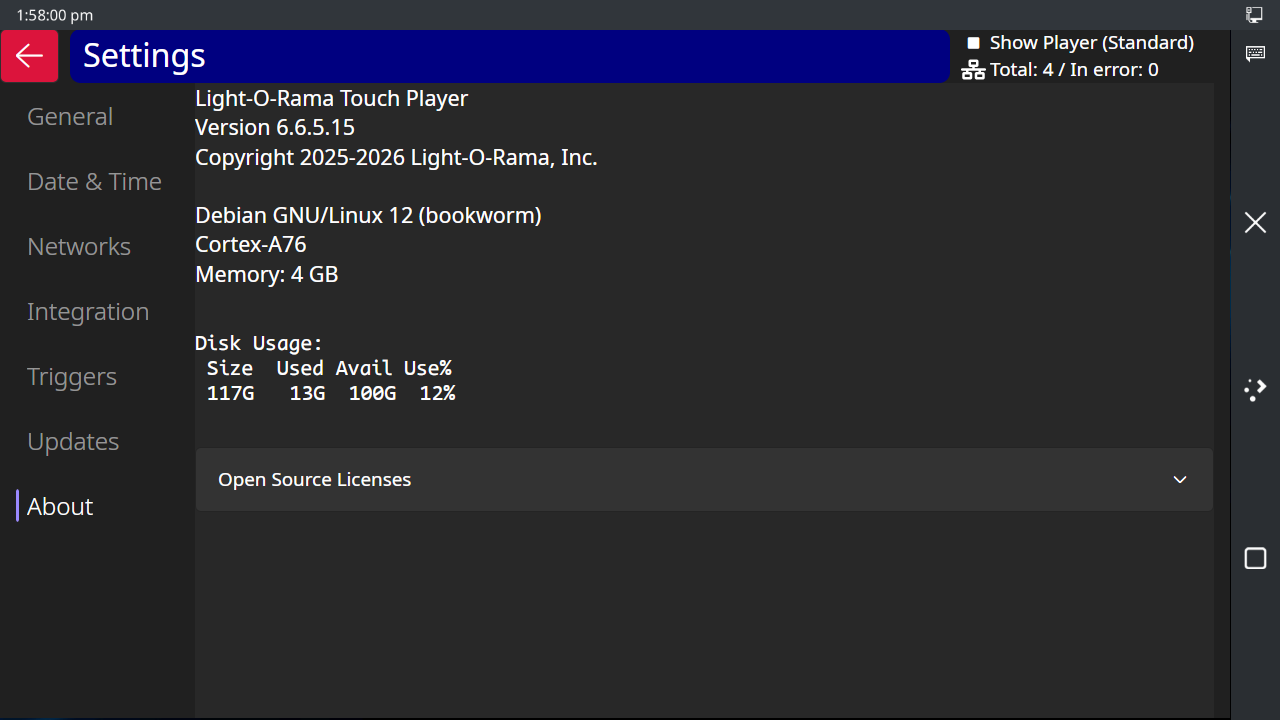
The About tab shows information about the Touch Player. If you create a ticket with the Light-O-Rama Help Desk regarding your Touch Player, please include the version number shown on this screen.
Disk usage is displayed below the system information. This shows the size of the main disk partition, how much is used, and how much is left. If you are running low on space:
•Select File Management from the main menu, go to the Sequences folder, and delete any shows you no longer need.
•From Create Shows, tap File Cleanup and delete older files.
At the bottom of the screen is a section for open source licenses - tap it to open the section.