Your sequence grid is often larger than your display. To access all parts of your sequence, you will need to be able to:
•Scroll the grid in any direction
•Zoom in and out of the grid both horizontally and vertically
Scrolling
There are several was to scroll the grid.
Scroll Bars
You can click on the scroll bars to scroll the grid. There are 2 vertical scroll bars on the right edge: one scrolls the beat channels section and the other scrolls the main section. If there are no beat channels displayed, the beat channel scroll bar will be hidden. Also, the beat channel scroll bar will only need to be used if you have defined more beat channels than can be displayed at one time. The maximum number of beat channels displayed at one time defaults to 10, but you can change this value from the grid view menu.
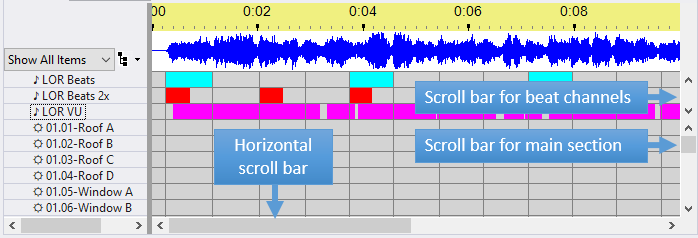
Sequence Grid Scroll Bars
Mouse Wheel
You can scroll the grid vertically using the mouse wheel on your mouse.
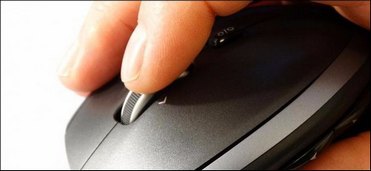
Using a mouse wheel makes it easier to scroll
If you are using a laptop and only have the built-in touch pad available, you can use 2 fingers to scroll vertically; though this tends to not work as reliably as a mouse with a mouse wheel
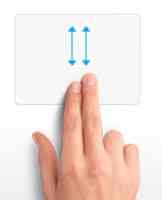
Using a touch pad to scroll

Hold the shift key down while using the mouse wheel to scroll horizontally.
Keyboard
As you move the selected area of the grid using the arrow keys, home, end, page up, or page down, the grid will scroll so the current cell is always visible.
Zooming
You can zoom in or out in the sequencing grid:
Zoom The Timescale (horizontal)
|
Click the Zoom Time In button on the toolbar |
||
|
Click the Zoom Time Out button on the toolbar |
||
|
Zoom in using Ctrl + |
||
|
Zoom out using Ctrl - |
||
|
Hold the Ctrl key down while using the mouse wheel |
||
|
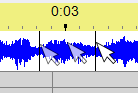
Zoom in by dragging the mouse pointer across the audio waveform |
||
|
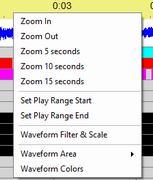
Right click on the time scale or on the wave form. •The first 2 options on the menu allow you to zoom the time scale in and out. •The next 3 options zoom to a fixed time scale: 5, 10, or 15 seconds wide. These can quickly take you to a reasonable time scale if you have zoomed in too far.
|


Zoom The Row Height (vertical)
|
Click the Zoom Channels In button on the toolbar to make the height of each grid row shorter |
|
Click the Zoom Channels Out button on the toolbar to make the height of each grid row taller |


Zoom Preferences
Zoom Preferences (under the Tools menu) allows you to set a preferred horizontal and vertical zoom level and to restore it when desired.