A cell, or a range of cells, can be selected in the sequencing grid, allowing you to apply various tools to it (such as specifying what lighting effects should be placed in that cell). You can recognize the currently selected cell (or cells) by a thick dashed yellow border. For example, in the following sequence, a cell on the first row is selected between 3.00 seconds and 3.50 seconds:

A cell on the first row is selected
In the sequencing grid, you can select cells using the:
Grid Selection Using The Mouse
Click On A Cell
|
Click on a single cell to select it. If the cell has a motion effect in it, that effect starts playing in the Playback Window. |

Click And Drag
Select multiple cells by clicking on a cell and then dragging the mouse across the range.
|
If you drag with the left mouse button depressed, what happens after the button is released depends on which tool is selected on the toolbar. For example:
|
||
|
If you drag with the right mouse button depressed, after the button is released the grid's context menu will open |
||
|
Normally a mouse selection will be bound on the left and right by the timing marks in the grid. However, you can make a selection that starts and ends between timing marks by holding down the Ctrl key as you start to click and drag. For example, here is a selection from about 0.3 to 1.3 seconds on a fixed timing grid with 1 second spacing:
|

 Select – no effect is applied to the selected cells
 Max Intensity – will apply the current effect, as listed on the toolbar, to the selected cells at the maximum intensity shown on the toolbar.
 Fade Up – will apply the current effect, as listed below the Effect Generator button, to the selected cells. The effect is ramped up from the minimum intensity at the left-most selected cell to the maximum intensity at the right.
 Fade Down – will apply the current effect, as listed below the Effect Generator button, to the selected cells. The effect is ramped down from the maximum intensity at left-most selected cell to the minimum intensity at the right.


Expanding the Selection
|
Expand the selection by shift-clicking on a cell. |

Double-Click Selection And Edit
|
Double-clicking on an effect in the sequencing grid will select all of the cells for that effect, then open a dialog window that allows the effect to be modified:
•Regular Channels - effect can be changed from intensity, shimmer, twinkle, or DMX intensity •RGB Channels - colors can be modified •SuperStar Effects - SuperStar is opened, allowing the effect to be edited •Other Motion Effects - the Motion Effect Generator is opened •Loops - the repeat count and speed can be modified
If the effect is modified and the user clicks “OK”, then those modifications are applied to the selected cells. In the following picture, one of the cells in the second row was double-clicked, causing all of the cells for that effect to be selected (including the ramp up and ramp down portions).
|


Keyboard Selection
Key |
Effect |
||||||
|
Use the arrow keys to move one cell in the direction of the arrow |
||||||
Move to the first cell in the current row |
|||||||
Move to the last cell in the current row |
|||||||
Move up 1 screen |
|||||||
Move down 1 screen |
|||||||
Expand the selection by holding down the shift key while using any of the keys listed above |
|||||||
If part of an effect is selected, then "E" will expand the selection to encompass the entire effect |
|||||||
"C" will expand the selection to the entire column |
|||||||
"R" will expand the selection to the entire row |
|||||||
|
Ctrl-A will select the entire grid. |


Right-Click Context Menu, Select sub-menu
Right-clicking in the sequencing grid provides a variety of options, including cell selection:
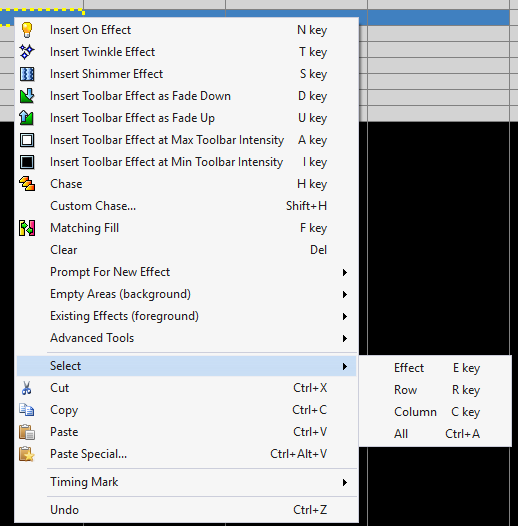
Right-click context menu with Select sub-menu shown