Right-clicking on the sequence grid brings up a pop-up menu. This menu contains items which allow you to modify the currently selected cells, in a variety of ways. For example, you can insert lighting effects, cut, copy, and paste (both effects and timings), and delete or resize timings. Some items on the menu may be hidden depending on the type of grid row you click on and your license level.

The Right-Click Context Menu
The following items are available on this right-click context menu:
•Insert Toolbar Effect as Fade Down
•Insert Toolbar Effect as Fade Up
•Insert Toolbar Effect at Max Toolbar Intensity
•Insert Toolbar Effect at Min Toolbar Intensity
•Prompt For New Effect sub-menu
•Empty Areas (background) sub-menu
•Existing Effects (foreground) sub-menu
Insert On Effect
Inserts an "on" effect into the currently selected cells at the maximum value in the toolbar's intensity range. It does this regardless of the currently selected effect on the toolbar.
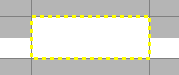
ON effect (with intensity range 50-100%)
Insert Twinkle Effect
Inserts a "twinkle" effect into the currently selected cells at the maximum value in the toolbar's intensity range. It does this regardless of the currently selected effect on the toolbar.
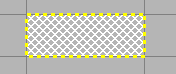
TWINKLE effect (with intensity range 0-100%)
Insert Shimmer Effect
Inserts a "shimmer" effect into the currently selected cells at the maximum value in the toolbar's intensity range. It does this regardless of the currently selected effect on the toolbar.

SHIMMER effect (with intensity range 0-100%)
Insert Motion Effect
This command only appears on the menu if you have selected one or more cells on a motion effect row. It opens the Motion Effect Generator, where you can create an effect. After clicking the OK button in the Motion Effect Generator, the effect that was created will be inserted into the selected cells at the maximum value in the toolbar's intensity range,
To edit the motion effect, just double-click on the effect in the sequence grid and the Motion Effect Generator will re-open.
This command requires a Pro level license.
Insert SuperStar Effect
This command only appears on the menu if you have selected one or more cells on a motion effect row. It opens the SuperStar Sequencer, where you can create one effect, or many effects, or load a purchased sequence. After you finish your sequencing in SuperStar, close SuperStar by clicking on the Red X in the upper right of the program (there is no need to use SuperStar's save function). You will then be returned to the S5 Sequencer and your new SuperStar effects will be automatically saved as part of the S5 Sequencer's sequence. They will be displayed in the selected cells as a single effect at the maximum value in the toolbar's intensity range,
To edit the SuperStar effect, just double-click on the effect in the S5 Sequencer's grid and SuperStar will re-open.
This command requires a Pro level license.
Insert Toolbar Effect as Fade Down
Inserts the current effect into the selected cells as a ramp from the maximum value in the toolbar's intensity range to the minimum value in the toolbar's intensity range.
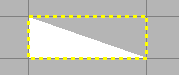
Fade Down (ON effect with intensity range 0-100%)
Insert Toolbar Effect as Fade Up
Inserts the current effect into the selected cells as a ramp from the minimum value in the toolbar's intensity range to the maximum value in the toolbar's intensity range.
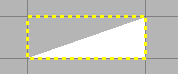
Fade Up (ON effect with intensity range 0-100%)
Insert Toolbar Effect at Max Toolbar Intensity
Inserts the current effect into the selected cells at the maximum value in the toolbar's intensity range
Max Intensity (ON effect with intensity range 50-100%)
Insert Toolbar Effect at Min Toolbar Intensity
Inserts the current effect into the selected cells at the minimum value in the toolbar's intensity range
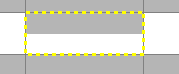
Min Intensity (ON effect with intensity range 50-100%)
Chase
Creates a chase across the selected cells.
Custom Chase
Opens the Custom Chase dialog, then creates the chase across the selected cells with the options specified in the dialog.

The Custom Chase dialog
•Row Mode:
•Chase Each Row: perform the chase on each row in the selected area
•Chase Each Prop: perform the chase on the first row of each prop in the selected area (makes a difference on pixel props with multiple motion effect rows)
•Clear existing effects: clears the chase area of any existing effects before placing the new effects that are part of the chase.
•Same Row Type: if selected, the chase will only occur on rows of the same type as the first row. For example, if the first row is a regular channel, any RGB channels or motion effect rows will be skipped. If there is no check mark next to this option, then the chase will proceed through all selected rows, regardless of type.
Matching Fill
Creates a matching fill across the selected cells.
Clear
Deletes any effects in the selected area of the grid.
Prompt For New Effect sub-menu
Opens the Prompt For New Effect sub-menu.
Empty Areas (background) sub-menu
Opens the Empty Areas (background) sub-menu.
Existing Effects (foreground) sub-menu
Opens the Existing Effects (foreground) sub-menu.
Advanced Tools
Opens the Advanced Tools sub-menu.
Select sub-menu
This sub-menu displays items to expand the grid selection to encompass:
•the entire effect
•the entire row
•the entire column
•the entire grid
Cut, Copy, Paste
These items perform standard cut, copy, and paste functions. See the Clipboards & Cut/Copy/Paste/Repeat topic for more information.
Paste Special
Opens a dialog window that allows you to select additional options when you are pasting. See the Clipboards & Cut/Copy/Paste/Repeat topic for more information.
Timing Mark sub-menu
Opens the Timing Mark sub-menu.
Audio Wizards
Opens a sub-menu that allows you to initiate an Audio Wizard.
Undo and Redo
These allow you to undo and redo changes that you make to a sequence. A wide variety of changes can be undone and redone - changing lighting effects, moving timings, and many more. If there is no action to be undone, the "Undo" menu item will not be shown. If there is no action to be redone, the "Redo" menu item will not be shown.
There is a limit to how many changes will be remembered for the purposes of undo and redo, so if you make many changes to a sequence and then start undoing them all, you may eventually reach a point where you can't undo any more, even though you haven't undone all of the changes that you made.
Undo and redo have keyboard shortcuts: Ctrl-Z and Ctrl-Y, respectively.