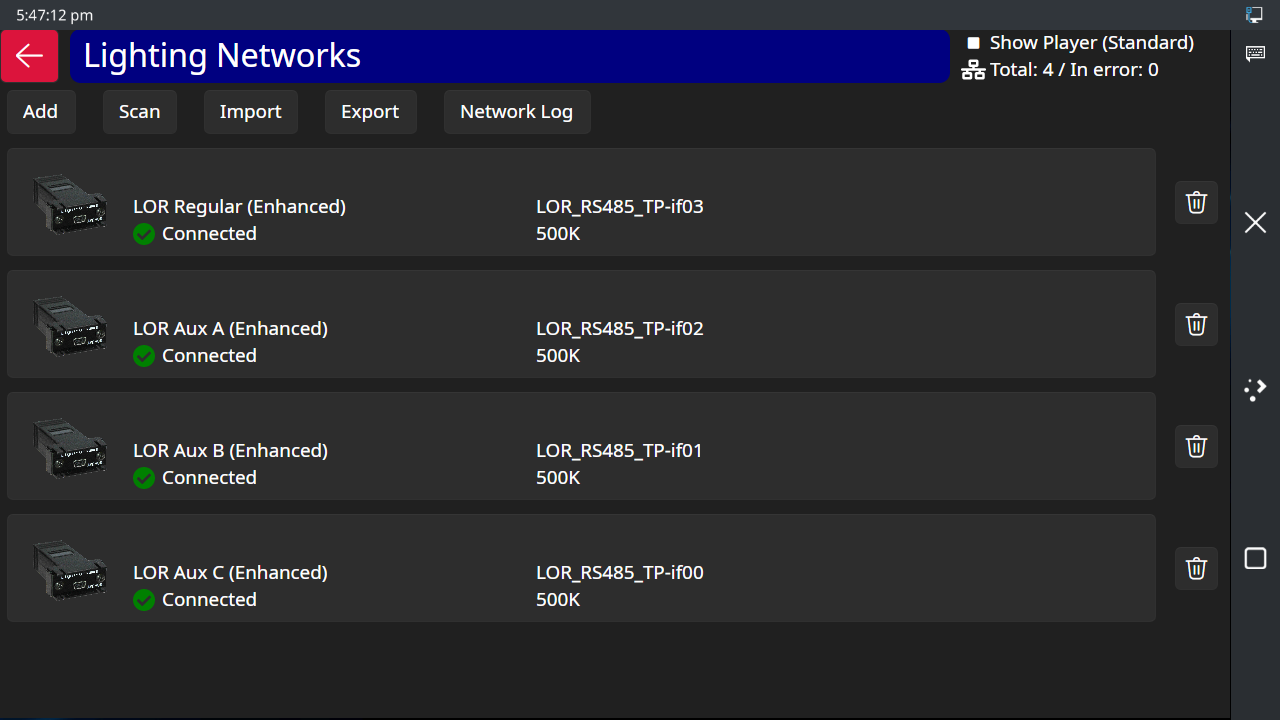
The Lighting Networks Screen
The Touch Player can control a wide variety of hardware devices and communicate with them via several different methods. The device comes pre-configured from the factory with the 4 built-in RS-485 ports defined as ELOR with 500K speed.
At lest 1 network must be defined here in order to use the Test Lights section or to play a show from this device.
Light-O-Rama Adapters
In the simplest case, the devices/controllers are connected to your Touch Player via one of the four built-in RS-485 ports. If you need more ports, you can plug any Light-O-Rama USB adapter to one of the USB ports.
Typically, Light-O-Rama controllers are connected to RS-485 ports, and up to 16 ports (4 built-in plus 12 external) can be connected to a single Touch Player - that is, 16 different "networks". In many cases, a Light-O-Rama user will only need a single network -- that is, a single RS-485 port -- for all of his or her controllers: this is called the "Regular" network. Should additional networks be needed, 15 auxiliary networks ("Aux A", "Aux B", and so on, up to "Aux O") are also available, each of which would be controlled via a separate USB adapter.
DMX
The Touch Player software also supports communication to:
•DMX devices via USB to DMX adapters,
•Ethernet-connected devices via the E1.31/sACN protocol.
•Ethernet-connected devices via the Art-Net protocol.
The Touch Player allows up to 3000 DMX universes to be defined.
The Network List
The Touch Player's Lighting Networks screen let's you set up your lighting networks and see their connection status in real time. These networks are used by the Show Player when it plays your sequences. It is important that this information is correct or your lights will not turn on!
Each network can have a name, e.g. "Left side of front yard" to help identify its purpose or the props connected to it. A second line shows some of the connection parameters. And a third line shows the connection status -- a green check mark if things are OK, or a red X if there is an issue. In the screen shot above, all 4 networks are in a green status. The summarized status is always visible at the top right of the screen:
•The total number of networks defined - 4 in this example.
•The number of networks in error - 0 in this example
Tap on a network to modify it. Tap the trash can button on the right side to delete a network.
Heading Buttons
The buttons at the top of the list allow you to:
•Add a new network. You will be prompted for what kind of network to add:
•Scan for E1.31 and Art-Net networks
•Import and export the complete network configuration. The exported file can be used as a backup. Note that the file format used for export (.LORNET) on the Touch Player is different and incompatible with those used in the Control Panel on a PC. However, the import function can read the native .LORNET files as well as .LIV files from the Control Panel.
•View the network log, which records when devices are connected and disconnected. At the end of each day, the log is written to disk, then cleared, ready to record the upcoming day's activity. Each file on disk is in the CSV (comma-separated values) format for ease of loading into a spreadsheet for analysis. The files are stored in the \Light-O-Rama\Logs\CommLogs folder.
.