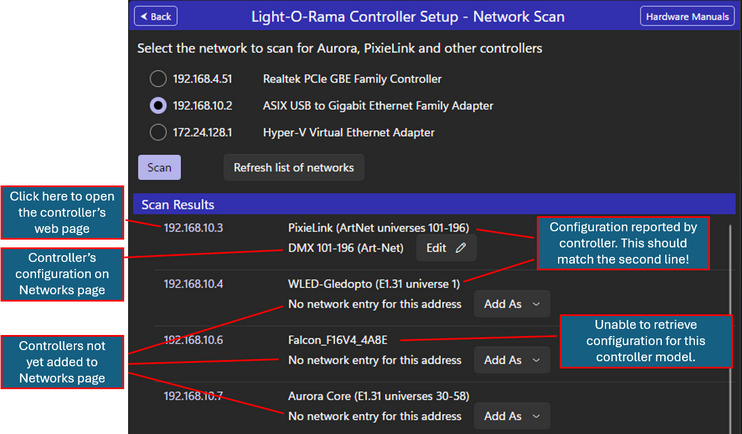
Use this tool to find IP addresses for Light-O-Rama Aurora and PixieLink controllers, open a controller’s setup page in a browser, and add a newly discovered controller to the Networks page.
1.When you open the tool, it displays the network adapters connected to your computer. If your computer uses Wi-Fi only, you will likely see one network listed. In the example below, three networks are listed, and the second network is selected for scanning.
2.Click the Scan button. Depending on the number of devices on the network, the scan can take 1 to 30 seconds to complete.
3.After the scan is complete, the tool lists devices that have web-based setup pages.
a.The first column displays the controller’s IP address; click the address to open the controller’s web-based setup page in your default browser.
b.The second column displays two rows of controller and network information.
•The first row shows the controller name and, for certain models, the network protocol and universe range.
•If the IP address matches an entry on the Networks page, the second row shows the network-entry description and an Edit button; if there is no matching entry, click the Add As button to create one.
4.When you are finished with the scan page, click the Back button to return to the main Controller Setup view.
5.If you connect a USB-to-Ethernet adapter after the Control Panel has started, click the “Refresh list of networks” button if the new adapter does not appear in the list.