The "Create Shows" section of the Control Panel is used to create, edit, schedule, and verify shows. A show is a group of sequences that will be played together. They can be played using the Show Player.

A list of 4 shows and their associated schedules
Each show in the list displays the show's name and some information about its schedule. Hovering your mouse over the schedule information will show more details in a tool tip.

Each show can be active or inactive. Only active shows will be scheduled by the Show Player. However, you can still play inactive shows using Show On Demand. Setting a show active or inactive can be done directly from the list of shows, or it can be set while editing a show (in the Dates & Times section).
The buttons at the top right allow you to:
•Edit the selected show. You can also do this by double-clicking on a show in the list.
•Remove a show from the list
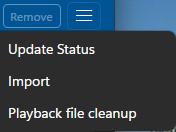
Create Shows menu
The menu button at the far right contains additional options:
•Update the playback readiness status
•Package an entire show for export, or import that packaged show
•Import a legacy show (LSS file)
If a show is displayed with a red icon in front of its name, it indicates that the show file (LSS file extension) cannot be found. If the file has been renamed or moved, you can double-click on the item and you will be prompted for the new show file location.

The show file is missing for this show
Add Or Edit A Show
To add a new show, click the Add button in the heading.
To edit a show, select a show from the list so that it is highlighted, then click the Edit button in the heading. Alternatively, you can double-click on a show to immediately open the Edit Show dialog. If you double-click, be sure to avoid the Active toggle, or you might change its setting inadvertently.
Either action will open the Show dialog where you can assemble the playlist and set the show's schedule.
Remove A Show
To remove a show, select it from the list, then click the Remove button. This will permanently remove the show's schedule and playlists from your computer -- so use with caution!
Show Readiness
After you have created (or purchased) your sequences and put them into a show, there is still one more step before the show can be played: the show must be prepared for playback. Show readiness status is listed on the right side of the entry for each show.
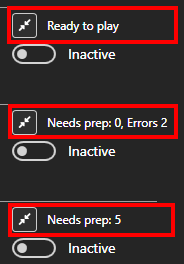
There is a button, and then to its right is the status. Here is what the status messages mean:
•Ready to play - the show has been prepared and is ready to play. There should be no delays when the show starts to play.
•Errors: <number> - the number indicates the number of sequences that cannot be played for one reason or another. Edit the show, then go to the Verifier section to see any problems.
•Needs prep: <number> - the number indicates the number of sequences that need preparation before they can be played. You can either:
ostart the preparation manually by clicking the button to the left of the status message, or
owait and let your show play, in which case the preparation will be done right before each sequence starts for the first time.
Preparing the Show
|
If there are sequences in a show that need preparation, click this button to prepare them. The process will happen in the background so you can continue to use the Control Panel for other things. While preparation is running, the button will be replaced by a spinning icon and the status will change to a percentage, letting you know how far along the process is. |

This picture shows preparation in progress, with the percent complete displayed:

How Long Does Preparation Take?
The length of time it takes to process a sequence depends on several factors including the length of the sequence, the number of channels it is controlling, the number of effects, and the speed of the computer. A 16 channel sequence can usually be processed in a few seconds. A long sequence for a display with thousands of pixels could take several minutes, or several hours, depending on its complexity.
How Often Does Preparation Need To Be Done?
A show needs to be prepared for playback any time one of these items change:
•Sequences are added to the show
•A sequence in the show is changed using the Sequencer
•A preview for any of the sequences in the show is changed
•In the Networks panel, an LOR network is changed from non-enhanced to enhanced (or vice versa).
The status shown in the list may not update automatically when any the above occurs. Therefore, you can use the "Update Status" menu option to refresh the status of all shows.
Packaged Shows
Some users create their sequences and design their shows on one computer and use a different computer (a "show computer") to run their show. This feature allows you move an entire show in just 3 simple steps:
1.Export the show to a single file
2.Transport the file to the show computer (via flash drive, cloud storage, or network storage)
3.Import the package file on the display computer. The import process will check the configured Networks to ensure they are sufficient to run the show. Any warnings will be displayed in a pop-up message.
A packaged show has an LSSPKG extension and contains all of the information needed to play the show on another computer: playlists, triggers, show options, schedule, and media files. Sequences are included as playback files, not the original sequences. Therefore, packaged shows are NOT a substitute for backing up the contents of your Light-O-Rama folder.
Export
Select the show to be exported, then select Packaged Show > Export from the menu. The program will then analyze the show. If your license supports enhanced LOR (ELOR) networks, you will be given the option to change which LOR networks are designated as enhanced. This might be needed if you have light linkers (ELLs) or old first generation AC controllers -- both of these situations require that those devices be on a network that is not enhanced. Here is a sample screen for a show consisting of RGB Plus sequences from the Light-O-Rama store.

If a show contains DMX universes, they will be shown like this:

When you are ready to proceed, click the "Create Package File" button. You will then be given the option to choose the file name and location for the package show file. If you will be moving the file via flash drive, you can write directly to the removable drive. After selecting the location, a progress bar will be displayed as the file is written. Depending on the number and length of the sequences in the show, this could take anywhere from a few seconds to a few hours. If using a flash drive, do not remove it until the process is complete (and then remember to safely eject it).
Import
Select Packaged Show > Import from the menu. You will be prompted for the location of the packaged show file. Files will be unpacked to the Light-O-Rama\Sequences\Shows\<show name> folder. If a folder already exists for <show name>, a number will be added to the end of the show name to make it unique. For example, the first time you import a packaged show named "My Show", it will get the name "My Show". If you import it again, it will get the name "My Show (2)", then "My Show (3)", etc.
After the import has completed, the networks used by the show are compared to the networks set up on the current computer. Any mismatches are displayed as a warning. In the following example, a show containing RGB Plus sequences (using Regular, Aux A, Aux B, and Aux C, all enhanced) is being imported to a computer where only the LOR Regular network has been defined. Actions to be taken by the user are:
1.Define Aux A, Aux B, and Aux C -- assuming the user has props on these networks. If the user doesn't have props on one or more of these networks, they can ignore the warning and the show will still play on the networks that are defined.
2.Change the Regular network to enhanced. If the user ignores this warning, motion effects on pixel props will not be displayed.

Import A Legacy Show (LSS file)
Selecting the "Import Legacy (LSS)" menu item will prompt you to select an LOR Show file (LSS file extension). Show files were created in prior versions of the software using the Show Editor, or the LOR Hub's "Simple PC Show" function, or the older Simple Show Builder program. The legacy import function allows you to bring shows built with these older tools into the latest software. Once the show has been imported, it will be displayed in the Edit Show dialog.
Clean Up Playback Files
Playback files are created during the preparation process and used when your show is playing. If you delete a file that is still needed, it will be regenerated automatically when you 'prep' the show or as your show starts. As your network settings change or your preview changes, you can end up with playback files that are no longer needed. Use this function to delete the unneeded files and reclaim disk space.

Clean Up Playback Files dialog