The "Effect Samples" window displays Color Fade favorites as well as thumbnails for motion effects. It is normally docked on the right side of the main Light-O-Rama S5 Sequencer program window. To keep the window open, click the pin icon in the upper right corner of the window. It can also be dragged and dropped such that it "floats" outside of the main window.
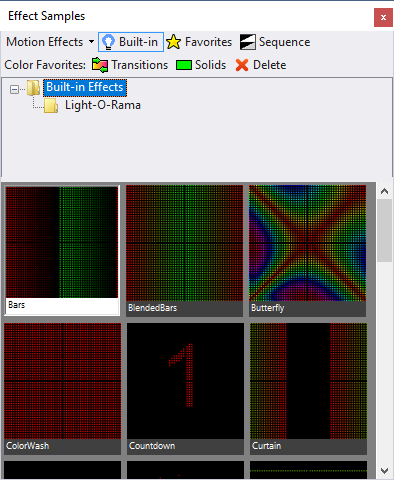
The Effect Samples window displaying motion effects
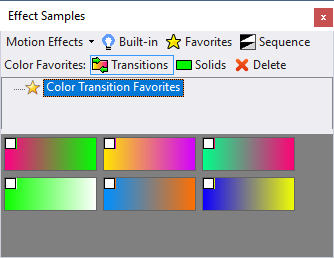
The Effect Samples window displaying color transition favorites
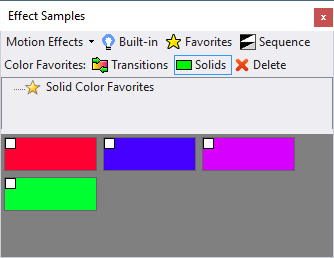
The Effect Samples window displaying solid color favorites
Choosing What Is Displayed
Select one of the 3 motion effect buttons to display:
•built-in effects
•favorites saved in the Motion Effect Generator
•motion effects used in the current sequence (perhaps you want to re-use one)
There may be a hierarchical tree of motion effects, in which case the tree will be displayed between the buttons on top and the effect samples below. You can click on any node in the tree to just display favorites under that section of the tree. The motion effect buttons are only displayed at the Pro license level.
Select one of the 2 color favorites buttons to display:
•Favorite color transitions
•Solid color favorites
Using A Sample In Your Sequence
This is the easy part: just click on a sample, then select a region on the sequence grid. The selected region will be filled in with the selected sample.
Removing Color Favorites
Perhaps you have some color favorites that you no longer need. To delete them, click the check-box in the upper left corner of each color sample to be removed, then click the "Delete" button up top. Be careful, this operation cannot be undone.
Motion Effect Options
There are a couple of options that control how thumbnails are displayed. To access then, click the down arrow next to the word "Motion Effects"
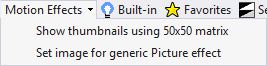
Show thumbnails using 50x50 matrix
By default, thumbnails are displayed using a 50 by 50 matrix. However, this can be overridden by selecting "Use This Prop (or Group) For Thumbnails" from the pop-up menu when you right-click on an item in the item list. This menu item will restore the default.
Set image for generic Picture effect
When displaying "Basic Motion Effects", the Light-O-Rama Picture effect will be displayed as a blank. This option allows you to select a picture file to use for the thumbnail.
Motion Thumbnail Double-Click

When you double-click on a motion effect thumbnail, the Motion Effect Generator is opened and the selected motion effect is displayed.
This can be used to:
•Modify a motion effect favorite
•Create a new favorite based on an existing one
•Set the current effect based on one shown in the window
Modify a motion effect favorite
•Set the selection to Motion Effect: Favorites
•Double-click on a thumbnail of a favorite
•Modify the effect the in the Motion Effect Generator
•The name of the favorite should already be highlighted in the Favorites area of the Motion Effect Generator, so click the "Save" button on the Favorites toolbar to update it. You will be asked if you want to overwrite the existing favorite.
Create a new favorite based on an existing one
•Set the selection to Motion Effect: Favorites
•Double-click on a thumbnail of a favorite
•Modify the effect the in the Motion Effect Generator
•Click on a folder name in the Favorites area of the Motion Effect Generator, then click the "Save" button on the Favorites toolbar.
Set the current effect based on one shown in the window
•Double-click on a thumbnail
•Modify the effect the in the Motion Effect Generator
•Click "OK" to close the Motion Effect Generator
•The new effect will start playing in the Playback window, the toolbar effect will be changed to "Motion Effect", the current tool on the toolbar will be changed to Max Intensity, and the mouse pointer will change to the edit cursor when it is moved over the sequence grid
Now when you click and drag the edit cursor over some cells in a motion effect row, the new effect will be added to those cells.