Each Light-O-Rama controller must have a unique assigned unit ID, identifying this particular controller. The reason for this is that every Light-O-Rama controller in a network can see every lighting command message that is sent over the network, not only the lighting commands sent for that controller. So, all of the commands contain a unit ID, and a controller only acts upon a command if the unit ID of the controller matches the unit ID of the message.
A unit ID is a two-character field. Each character can have any of the values 0, 1, 2, 3, 4, 5, 6, 7, 8, 9, A, B, C, D, E, and F. For example, a unit ID might be "03", "07", "25", "37", "6B", "C8", or "DA". However, certain values are reserved, and so not allowed (specifically, "00", and "F1" through "FF").
How you set the unit ID varies by controller. The 4 methods are covered below. Refer to the manual for your specific controller to see which method it uses, and under what conditions. You can also check the Product Matrix for the Hardware Utility - the "Change Unit ID" column shows which controllers support setting the Unit ID using the Hardware Utility.
•Set the unit ID from the front panel
•Set the unit ID with rotary switches
•Set the unit ID with DIP switches
•Set the unit ID with the Hardware Utility
Set Unit ID From Front Panel of LOR160xWg3

LOR1600Wg3 Front Panel
Some Light-O-Rama controllers have a front panel display that allows for entry of the unit ID (e.g. LOR1600Wg3 and LOR1602Wg3). Refer to the manual for your controller for steps on setting the Unit ID.
Set Unit ID With Rotary Switches
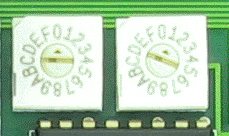
Rotary switches: this pair is set to Unit ID 01
Before changing the switches, make sure the unit is not attached to power!
For units with rotary switches, simply use a small screwdriver to dial the 2 switches to the desired unit ID. Note that the arrow pointing to the selected number is perpendicular to the slot. Example controllers include the CMB16D, CTB08D, and CTB16D (all of these are generation 1 controllers).
Set Unit ID With DIP Switches
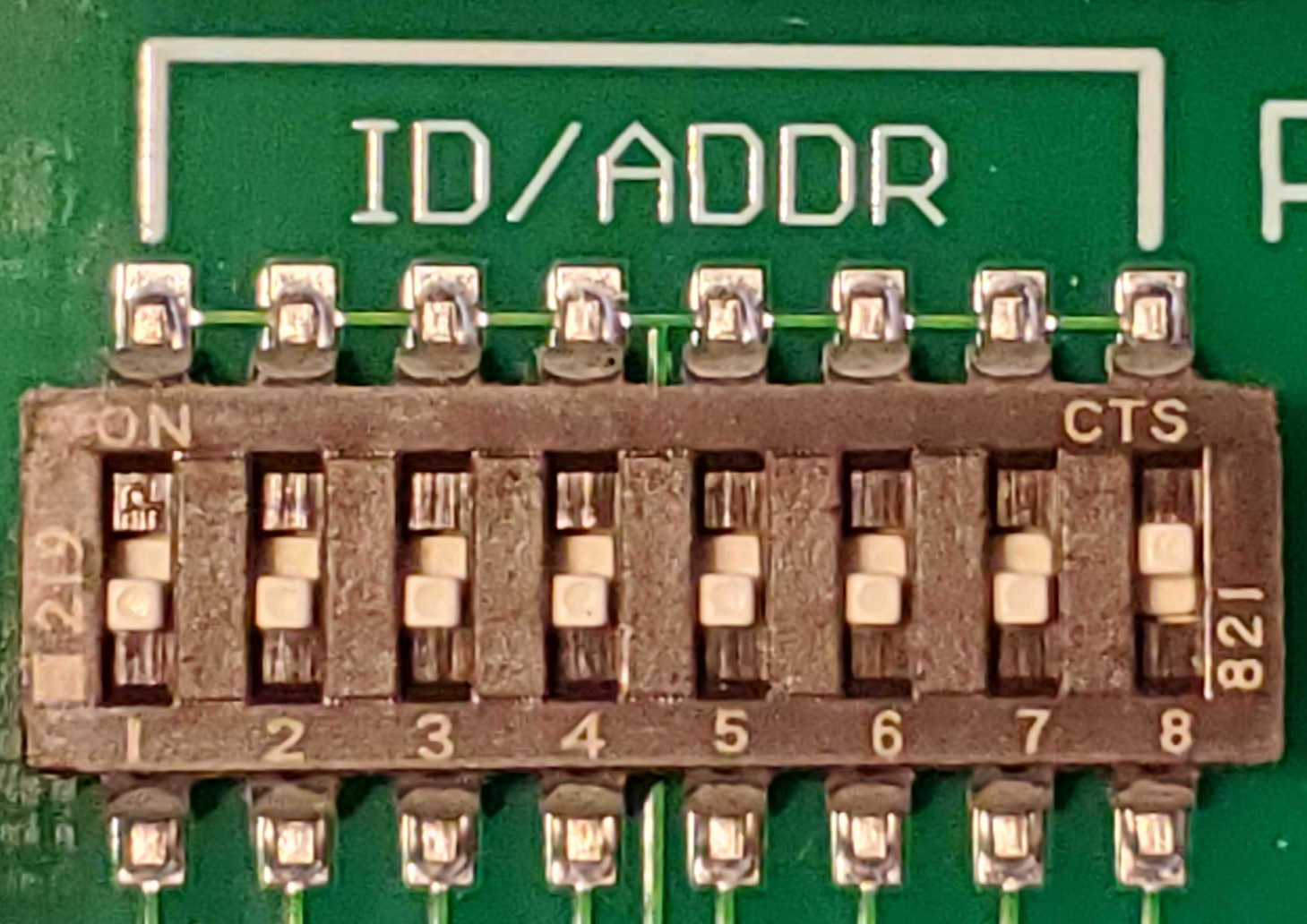
DIP switches - these are all off, so ID 00
Before changing the switches, make sure the unit is not attached to power!
For units with DIP switches (8 tiny white switches), use this table to determine the correct switch settings. Use your fingernail, a small screwdriver, or a pencil to set the switches. Example controllers include the Pixie 2/4/8/16, CTB04-PC, and CMB24D. Some controllers, like the Pixie and 50W flood, can be set via the Hardware Utility if the switches are all off (as in the picture above); and otherwise use the switch settings.
Make sure you are looking at the DIP switches with the correct orientation; if you have it up-side-down, you will set your controller to the wrong unit id.
Set Unit ID From Hardware Utility
For controllers that don't have a front panel, dial switches, or DIP switches, you can use the Hardware Utility to set the unit ID. Follow these steps:
•If you haven't already done so, plug a Light-O-Rama USB adapter into an available port. Connect a Cat5 or Cat6 cable from the adapter to the controller. Plug the unit into an AC outlet, and turn the unit on.
•Open the Light-O-Rama Control Panel and navigate to the Hardware Utility section.
•Make selections in the Ports to Scan and Scan For boxes.
oIf you do not remember the unit's current unit ID, or if the controller doesn't seem to be reacting to its current ID, you can change it to a new unit ID by selecting "Advanced (Unknown Id)" in the "Scan For" box. If you select this option, make sure that you have just one controller connected. Otherwise, all units that are connected to the PC will have their unit IDs changed.
•Click the "Scan" button
•Wait for results to appear at the bottom of the page
•For the device whose ID you are going to change, click the "Configure" button

Click the "Configure" button to change the unit ID of the controller
If "Scan For" was set to "Advanced (Unknown Id)", then the "Current Unit ID" will be shown as "FF" (this is not the unit's actual ID, but is OK); otherwise, the actual unit ID will be shown. Click the "Change" button to change it.

Current unit ID is "01"
A window will open allowing you to select the new unit ID. Select the new unit ID from the drop-down, then click the "Change" button
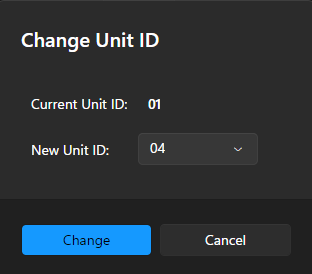
Changing the Unit ID from 01 to 04