The "Play Shows" section of the Control Panel:
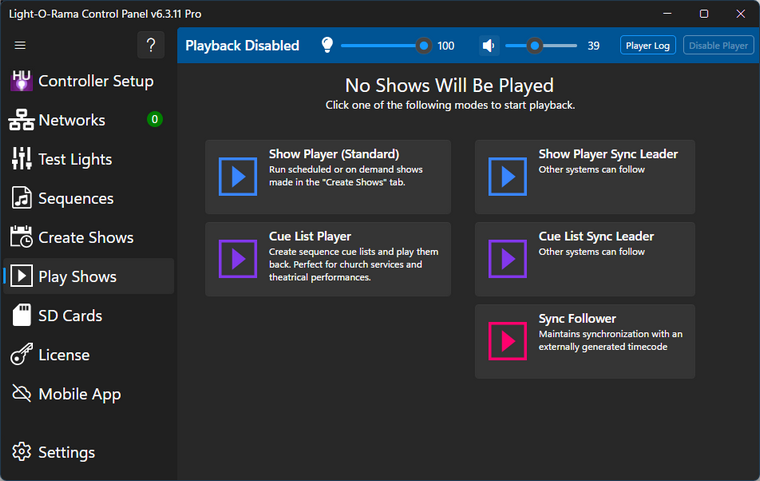
This section can be in one of 6 modes. The 3 buttons on the right are only displayed when Time Sync is enabled in Settings > Integration.
•Disabled - no playback, not even scheduled shows
•Show Player - plays scheduled or on-demand shows created in the Create Shows section.
•Cue List Player - create a cue list, and then click Play to start each cue. Can be used as a jukebox.
•Show Player Sync Leader - plays scheduled or on-demand shows created in the Create Shows section. Transmits a time code signal that other systems can follow Only displayed when Time Sync is enabled in Settings > Integration.
•Cue List Player Sync Leader - create a cue list, and then click Play to start each cue. Can be used as a jukebox. Transmits a time code signal that other systems can follow Only displayed when Time Sync is enabled in Settings > Integration.
•Sync Follower - Receives a time code signal and keeps this system synchronized with the the one that is leading.
To go from Show Player to Cue List Player you must go back through disabled mode first.
Controls in the Heading

The controls in the heading stay the same no matter which mode you are in. There are 2 slider controls and 2 buttons in the heading:
•The first slider is the "Master Dimmer" which sets the maximum brightness level for all of the lights in the show. This allows you to manually dim your lights while a show is playing, or to fade them out completely. Props can be excluded from master dimming by clearing the "Master Dimming Applies" box in Prop Definition.
•The second slider is the volume control which allows you to increase or decrease the volume. The speaker icon to the left of the volume slider serves as a mute button. Click it once to mute the sound. Click it again to unmute.
•The Player Log button opens a separate window that displays a log of all of the sequences that have played while the Control Panel has been open.
•The "Disable Player" button turns off the mode you were in (i.e. it will stop the show if one is playing) and takes you back to the Playback Disabled screen shown above.
Play Shows Badge
In the menu on the left, the Play Shows icon will display a badge when a player is active. The badge will indicate whether the player is stopped, paused, or playing a sequence. No badge is displayed in Disabled mode. This allows you to work in another section of the Control Panel and still know what is going on in Play Shows.
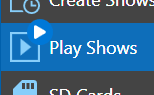
The "Play" badge
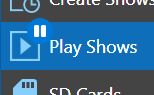
The "Pause" badge
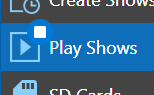
The "Stop" badge