On this screen you define a Light-O-Rama network - one that uses a USB adapter (or a serial adapter on older computers).
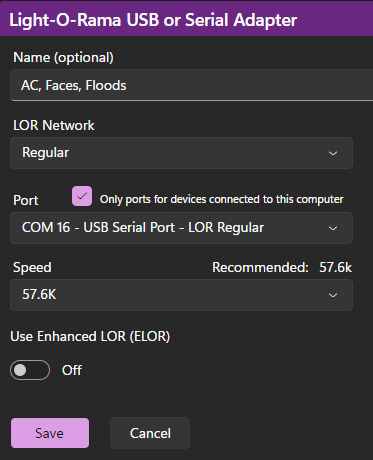
Name
Use the name field as you see fit. Listing some of the key props on this network makes for a good name.
LOR Network
Select the Light-O-Rama network. If you have a single network, then choose "Regular". Networks that are already defined will be disabled in the drop-down, so you don't define the same network twice.
Serial Port ("Port")
In the drop-down box, chose the serial port that you wish to use for that network. Make sure that your selection does not conflict with another network, or with DMX adapters.
If you check the box to the right of the drop-down, only adapters currently connected to the computer will be shown in the drop-down. This will make it easier to identify the correct port.
If you are setting up multiple LOR networks, we recommend connecting and setting up one adapter at time, checking the "Only show ports..." box each time. After you are done setting up all of the adapters in Network Preferences, you can then plug all of the adapters into your computer.
Connection Speed ("Speed")
Light-O-Rama software can communicate with Light-O-Rama controllers using various communication speeds. These speeds can be set independently for each Light-O-Rama network:
•If you do not have extraordinary needs and the network is not enhanced, "57.6K" is suggested.
•If you have controllers that are hooked up to your computer using a very long or poor quality communications cable, you may need to set the speed to "19.2K (Slowest)".
•If you are using Light-O-Rama Easy Light Linkers (ELL) for wireless communication in your network, speeds will be limited to a maximum of 115.4K (57.6K for the older V4 ELL).
•If you have many circuits with very fast action, you may need to set the speed to "115.4K", or even "500K". Note that 500K is currently supported only on G3 controllers, Cosmic Color Ribbons, Cosmic Color Bulbs, Cosmic Color Pixels, Pixie Controllers, and the PixCon16. You may also have to upgrade your firmware to use 500K. See our Network Speeds web page for the latest information.
•If you are using enhanced LOR, then 500K is the recommended speed.
•If this network ONLY contains a combination of Pixie and Pixcon16 controllers running on an Enhanced LOR Network, you may select 1000K.
Enhanced LOR
Checking this box designates this network as an enhanced network. This optimizes the network for high channel counts, such as when using RGB pixels. Motion effects and SuperStar effects can only be played on enhanced LOR networks and DMX networks.
A Pro level license is required to use this feature. Not all controllers can be used on such a network, and some controllers may require firmware updates before they are able to be used on an enhanced network. Also, input triggers are not supported on LOR Enhanced networks.