On this screen you define a DMX network that uses a USB adapter.
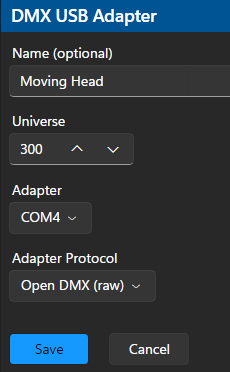
Name
Use the name field as you see fit. Listing some of the key props on this network makes for a good name.
Universe
Set the universe that will be assigned to this adapter. When you create props in your preview that represent fixtures attached to this adapter, the universe assigned to those preview props must match the one you assign here.
DMX Adapter ("Adapter")
Select the communications port from the drop-down list of ports available on the system. Ports already assigned to an LOR adapter will not be shown.
Fixing Old Entries
Versions 6.3.12 and earlier displayed the adapter's serial number (not the port) in this field. If you run Control Panel version 6.3.14 or later without updating the Network setting, you will see the error message shown below. A sample serial number (set using an older version) is shown on the right.

To fix the error: make sure the adapter is connected to the computer, then simply double-click on the Network entry to edit it. The correct serial port will be automatically selected. Save the entry and the port should now connect.
DMX Protocol ("Protocol")
Different DMX adapters use different protocols. You must specify the correct protocol for the DMX adapter you wish to use:
Adapter Type |
Protocol |
|---|---|
DMXKing UltraDMX Micro |
ENTTEC DMX Pro (or compatible) |
DMXKing UltraDMX RDM Pro |
ENTTEC DMX Pro (or compatible) |
ENTTEC DMX USB Pro |
ENTTEC DMX Pro (or compatible) |
ENTTEC Open DMX USB* *: Some old ENTTEC Open devices, built in approximately 2008 or earlier, may not be supported |
Open DMX (Raw) |
LOR USB485 |
Open DMX (Raw) |
LOR USB485B |
Open DMX (Raw) |
LOR USB485-ISO |
Open DMX (Raw) |
Lynx (DIY) |
ENTTEC DMX Pro (or compatible) |
Other types of adapters may or may not work with LOR software. If they do, you may need to experiment to find the correct protocol to use.