A variety of tools for adding new effects are available by right-clicking on the sequence grid and then opening the "Prompt For New Effect" sub-menu. As the name implies, you will be prompted for the effect first, and then the chosen effect will be inserted into the selected area of the grid.
From "Prompt For New Effect" sub-menu you can:
•Create new Fade Down, Fade Up, Max Intensity, or Min Intensity effects

Right-click menu with the Prompt For New Effect sub-menu open
Fade Down, Fade Up, Max Intensity, Min Intensity
These items will open a dialog that allows you to choose the type of effect to be inserted. The particular dialog that is opened will depend on the type of grid rows in the selection. The dialog for each row type is shown below. After clicking the OK button in the dialog, the entire selection will be filled with the chosen effect at the intensity level specified by the menu item.
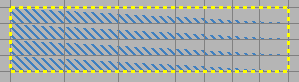
The result of Prompt For New Effect > Fade Down, and then choosing the Shimmer effect from the dialog
Regular Channels and Beat Channels
When used on Regular Channels and Beat Channels, these menu items will open the following dialog:

RGB Channels
When used on RGB Channels, these menu items will open the following dialog:

Motion Effect Rows
When used on Motion Effect Rows, these menu items will open the Motion Effect Generator.
Modify Existing Effects
This menu item will open the same dialogs shown above. However, after clicking the OK button in the dialog, only existing effects in the grid selection will be changed, and the intensity of those effects will remain the same.
For example, if the grid contained this:
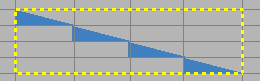
Before Modify Existing Effects
Selecting Prompt For New Effect > Modify Existing Effects, then selecting Shimmer from the dialog, would result in this:
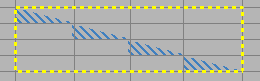
After Modify Existing Effects