The Keyboard Preferences menu item on the Light-O-Rama S5 Sequencer's Tools menu opens a dialog that allows you to customize the actions that take place when you type a key on your keyboard. The built-in (default) mapping of keys to actions is listed in the Keyboard Shortcut Summary. Here are some examples where you might want to use this dialog to create a customized keyboard mapping:
•There might be some keys in the default mapping that don't seem intuitive to you.
•You frequently use a program that uses different keys to move and take action and you want the Sequencer to follow a similar behavior when those keys are struck.
•You want to make a single key perform multiple functions - for example, you could set up the "N" key to expand the selection to the right by three cells and down by two cells, and then turn the entire (newly expanded) selection on.
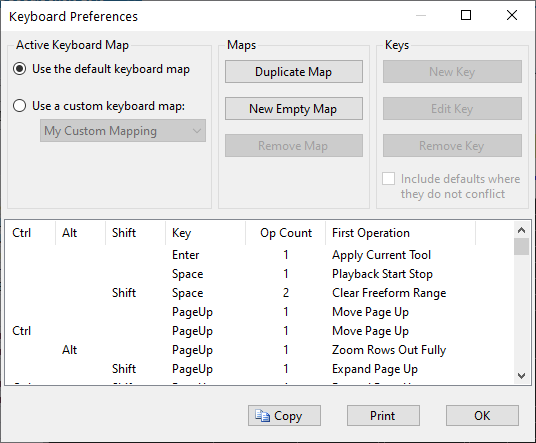
The Keyboard Preferences dialog
This dialog is resizable. In particular, you can make it taller so that you can see more key mappings at a time.
The Keyboard Preferences dialog has several sections:
•The "Active Keyboard Map" section allows you to choose what set of keyboard operations should be used.
•The "Maps" section allows you to define new sets of keyboard operations, or to delete existing sets.
•The "Keys" section allows you to define what keys should perform what operations in the currently active set of keyboard operations.
•Under that is displayed a list all keys in the current set of keyboard operations, and the operations that they perform. Click on a column heading to sort the list by that column. Double-click on a row to edit that entry. Only entries for custom maps are editable; however, you can double click on entries for the default mapping and see a read-only view of that map entry.
•Buttons at the bottom allow you to copy the list to the clipboard or to print the list.
Active Keyboard Map
The "Active Keyboard Map" section allows you to choose which keyboard map should currently be used. You can choose to use the default keyboard map for the current version of software, or to use a custom keyboard map that you have defined.
Use the Default Keyboard Map
Choosing this option will cause the Sequencer to use its default keyboard map. Moreover, if you have this option selected, and later upgrade to a new version of software which has a different default keyboard map, the Sequencer will then use that new default keyboard map.
Use a Custom Keyboard Map
Choosing this option will cause the Sequencer to use a keyboard map that you yourself have defined. Moreover, if you have this option selected, and later upgrade to a new version of software which has a different default keyboard map, the Sequencer will then continue to use the custom map that you have selected.
Your custom keyboard maps are automatically saved to your Light-O-Rama data directory, in the "CommonData\CustomKeyMaps.xml" file. If you would like to share your custom maps with another user, you can simply give them a copy of your "CustomKeyMaps.xml" file. When they place it into their own "CommonData" directory, it will be available for them as a custom keyboard map.
Note that this option is not available until you have defined at least one custom keyboard map, which you can do through either "Duplicate Map" or "New Empty Map".
Maps
The "Maps" section allows you to create new custom keyboard maps (either duplicating the current map or else creating an empty map), or to remove maps that you have previously created.
Duplicate Map
Using this button, you can create a new custom keyboard map which uses the exact same key mappings as the currently selected map does. You can then modify the key mappings as you desire, using "New Key", "Edit Key", or "Remove Key".
The new map will show up in the drop-down list under "Use a Custom Keyboard Map", and in fact will automatically be selected when you create it.
New Empty Map
Using this button, you can create a new custom keyboard map which does not contain any key mappings at all - that is, no key will cause anything to happen when you press it. You can then add keys to it via "New Key", and later edit or remove them via "Edit Key" or "Remove Key".
The new map will show up in the drop-down list under "Use a Custom Keyboard Map", and in fact will automatically be selected when you create it.
Remove Map
If you have currently selected a custom keyboard map (via "Use a Custom Keyboard Map"), pressing this key will delete the map.
Note that if there is a chance that you will want to use the custom keyboard map again in the future, you should not remove it. Instead, simply switch to using a different custom map, or to a default map, leaving the map in the "Use a Custom Keyboard Map" list, thus enabling you to switch back to it when you desire. If you remove it, you will not be able to switch back to it in the future.
Keys
If you have specified that a custom keyboard map should be used (via "Use a Custom Keyboard Map"), then the "Keys" section allows you to add new keys to it, edit existing keys within it, and remove existing keys from it.
New Key
This button (which is available only when a custom keyboard map has been selected, via "Use a Custom Keyboard Map") opens up the New Key Mapping dialog, which allows you to choose a key and set its operation or operations:
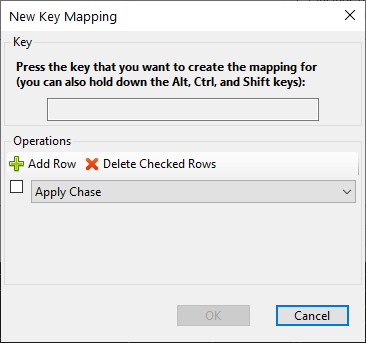
The New Key Mapping dialog
To use the New Key Mapping dialog, press the key that you want to use (and, if you want, the Alt, Ctrl, and/or Shift keys), and then select the operation that you want it to perform from the dropdown list:
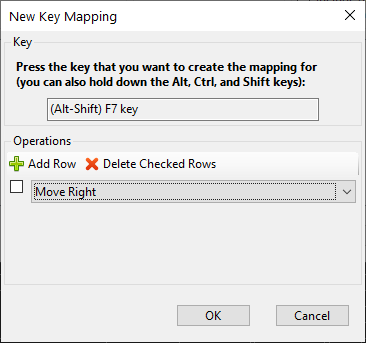
The New Key Mapping dialog, having selected a key and an operation
In the above example, Alt-Shift-F7 has been mapped to "Move Right" - that is, to move the selection to the right one cell.
You can use the "Add Row" button to assign multiple operations to a single key. They will be executed in the order that you list them. In the following example, Alt-Shift-F7 has been mapped to "Move Right, Move Down, Apply Shimmer". That is, the selection will be moved one square to the right, then one square down, and then the Shimmer effect will be applied to the new selection.
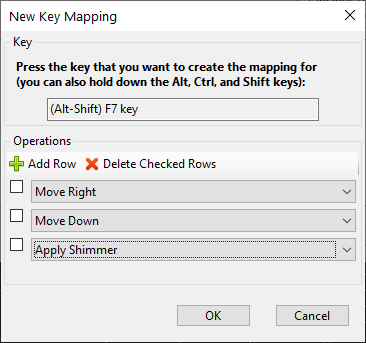
The New Key Mapping dialog, having selected a key and multiple operations
To remove operations, click the check box next to each operation you want to delete, then click the "Delete Checked Rows" button.
Edit Key
This button allows you to change the operation or operations that are in use for a certain key. It is available only when a custom keyboard map has been selected (via "Use a Custom Keyboard Map") and a particular key mapping from that map has been selected (by clicking on it in the list of key mappings at the bottom of the Keyboard Preferences dialog).
Pressing the button (or double-clicking on a row) brings up the Edit Key Mapping dialog:
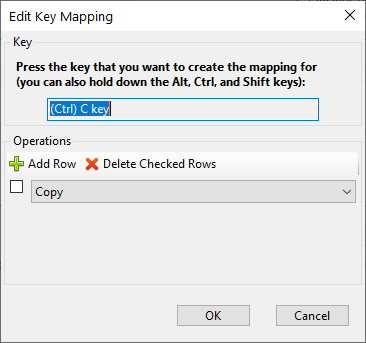
The Edit Key Mapping dialog
The Edit Key Mapping dialog can be used similarly to the New Key Mapping dialog.
Remove Key
This button allows you to remove a certain key from the current keyboard map. It is available only when a custom keyboard map has been selected (via "Use a Custom Keyboard Map") and a particular key mapping from that map has been selected (by clicking on it in the list of key mappings at the bottom of the Keyboard Preferences dialog).
Sorting the List
To sort the list of displayed key map entries, simply on a column heading. This sorting applies not only to the list as displayed on the screen, but also to the results of the Copy and Print buttons.
Copy
This button allows you to copy the list of keys and operations to your Windows text clipboard, so that you could (for example) paste it into a text document in Notepad. The list will be sorted as you specified in the "Sort By" section.
This button allows you to print the list of keys and operations. The list will be sorted as you specified in the "Sort By" section.
Operations
The following operations can be assigned to keys in a custom keyboard map:
Operation |
Description |
|---|---|
Apply Chase |
Apply the Chase tool to the current selection |
Apply Chase Custom |
Prompt the user for custom options and then apply the Chase tool to the current selection |
Apply Current Tool |
Apply the current tool to the current selection |
Apply Fade Down |
Insert the current effect into the selection as a Fade Down. |
Apply Fade Up |
Insert the current effect into the selection as a Fade Up. |
Apply Fill |
Apply the Fill tool to the current selection |
Apply Intelligent Fade |
Create a fade up if the selection was created in a left to right direction; otherwise create a fade down. Effects are create using the current effect and intensity range shown on the tool bar. |
Apply Maximum |
Insert the current effect into the selection at maximum intensity |
Apply Minimum |
Insert the current effect into the selection at minimum intensity |
Apply Off |
Delete any effects in the current selection |
Apply On |
Turn the current selection on using the Intensity effect. |
Apply Shimmer |
Apply the Shimmer effect to the current selection |
Apply Superstar |
Apply the SuperStar tool to the current selection |
Apply Toggle |
Apply the Toggle tool to the current selection |
Apply Twinkle |
Apply the Twinkle effect to the current selection when not playing back. Insert a timing mark when playback is running. |
Audio Beats Wizard |
Opens the Beat Wizard |
Audio MIDI Wizard |
Opens the MIDI Wizard (only valid if the audio file is in MIDI format |
Audio Tapper Wizard |
Opens the Tapper Wizard |
Audio VU Wizard |
Opens the VU Wizard |
Clear Freeform Range |
Clear the freeform play range (if one exists) |
Copy |
Copy the effects from the current selection |
Copy Timing |
Copy the timings from the current selection |
Cut |
Cut the effects from the current selection |
Expand All |
Expands the selection to encompass the entire grid |
Expand Column |
Expands the selection to encompass the entire column |
Expand Down |
Expand the current selection down one channel |
Expand Effect |
Select the entire effect |
Expand End |
Expand the current selection to the last cell in the sequence. |
Expand Left |
Expand the current selection left one cell |
Expand Page Down |
Expand the current selection down one screen |
Expand Page Left |
Expand the current selection left one page |
Expand Page Right |
Expand the current selection right one page |
Expand Page Up |
Expand the current selection up one screen |
Expand Right |
Expand the current selection right one cell |
Expand Row |
Expands the selection to encompass the entire row |
Expand Start |
Expand the current selection to the first cell in the sequence. |
Expand Up |
Expand the current selection up one channel |
File Close |
Closes the current sequence |
File Close All |
Closes all open sequences |
File Export Legacy |
Exports the current sequence in legacy (LMS/LAS) format |
File New Animation |
Starts a new animation sequence |
File New Musical |
Starts a new musical sequence |
File Open |
Starts the file open dialog |
File Save |
Saves the current sequence |
File Save As |
Saves the current sequence under a new name |
File Save Copy |
Makes a backup copy of the current sequence |
Help |
Open the help file |
Modify Effect |
Apply the current effect to the current selection |
Modify FadeDown |
Applies a fade down intensity profile over the current selection |
Modify FadeUp |
Applies a fade up intensity profile over the current selection |
Motion Effect Generator |
Opens the Motion Effect Generator |
Move Down |
Move the current selection down one channel. During sequence playback, this will mark the current time as the start of a freeform play range. |
Move End |
Move the current selection to the last cell in the sequence. |
Move Left |
Move the current selection left one cell |
Move Page Down |
Move the current selection down one screen |
Move Page Left |
Move the current selection left one screen |
Move Page Right |
Move the current selection right one screen |
Move Page Up |
Move the current selection up one screen |
Move Right |
Move the current selection right one cell |
Move Start |
Move the current selection to the first cell in the sequence. |
Move Up |
Move the current selection up one channel. During sequence playback, this will mark the current time as the end of a freeform play range. |
Paste |
Paste from the current clipboard to the current selection |
Paste Special |
Paste clipboard contents using the Paste Special dialog |
Paste Timing |
Paste timings to the current selection |
Playback Start Pause |
Starts playback. If playback is already going, then playback is paused. |
Playback Start Stop |
Start/stop playback. Uses the freeform play range if one is defined. |
Playback Stop |
Stops playback |
Prompt Effect FadeDown |
Prompts for a new effect and inserts it into the current selection as a fade down |
Prompt Effect FadeUp |
Prompts for a new effect and inserts it into the current selection as a fade up |
Prompt Effect Maximum |
Prompts for a new effect and inserts it into the current selection at maximum intensity |
Prompt Effect Minimum |
Prompts for a new effect and inserts it into the current selection at minimum intensity |
Prompt Effect Modify |
Prompts for a new effect and applies it to existing effects in the current selection |
Redo |
Redo the last operation that was undone |
Repeat |
Apply the Repeat tool |
Select Change Intensity |
Make the Change Intensity tool be the current tool |
Select Channel Effect |
Make channel effects active |
Select Chase |
Make the Chase tool be the current tool |
Select Color Fade |
Make the Color Fade tool be the current tool |
Select Create |
Make the Create tool be the current tool |
Select DMX Intensity |
Make DMX Intensity the current effect |
Select Fade Down |
Make the Fade Down the current slope |
Select Fade Up |
Make the Fade Up the current slope |
Select Fill |
Make the Fill tool be the current tool |
Select Intelligent Fade |
Make the Intelligent Fade tool be the current tool |
Select Intensity |
Make Intensity the current effect |
Select Maximum |
Make the maximum the current slope |
Select Minimum |
Make the minimum the current slope |
Select Motion Effect |
Make Motion Effects effects active |
Select Select |
Make the Select tool be the current tool |
Select Shimmer |
Make shimmer the current effect |
Select Superstar Effect |
Make SuperStar effects active |
Select Toggle |
Make the Toggle tool be the current tool |
Select Twinkle |
Make twinkle the current effect |
Sequencer Preferences |
Opens the Sequencer Preferences dialog |
Toggle Drag Edges |
Toggles "drag edges" mode |
Toggle Play Loops |
Toggle looping playback |
Toggle Playback Window |
Toggles visibility of the playback window |
Toggle View Fades As Ramps |
Toggle viewing fades as ramps |
Tooltip |
Open up a tooltip appropriate to where the mouse cursor is currently pointing on the sequence grid |
Undo |
Undo the last operation |
Zoom Rows In |
Zoom in on rows (channels) |
Zoom Rows In Fully |
Zoom in on rows (channels) as far as possible |
Zoom Rows Out |
Zoom out on rows (channels) |
Zoom Rows Out Fully |
Zoom out on rows (channels) as far as possible |
Zoom Time In |
Zoom in on time (columns) |
Zoom Time In Fully |
Zoom in on time (columns) as far as possible |
Zoom Time Out |
Zoom out on time (columns) |
Zoom Time Out Fully |
Zoom out on time (columns) as far as possible |