Sequences in the S5 version are stored in a different format and have a different file extension than in prior versions.
S5 Sequences |
Prior Versions |
|
|---|---|---|
Musical Sequences |
LOREDIT |
LMS |
Animation Sequences |
LOREDIT |
LAS |
Sequence File Extensions
Therefore, sequences created with prior versions must be upgraded. You do this by selecting File > Open from the main menu, and then selecting the LMS or LAS file you want to upgrade. After opening the file, you will be presented with the following dialog:
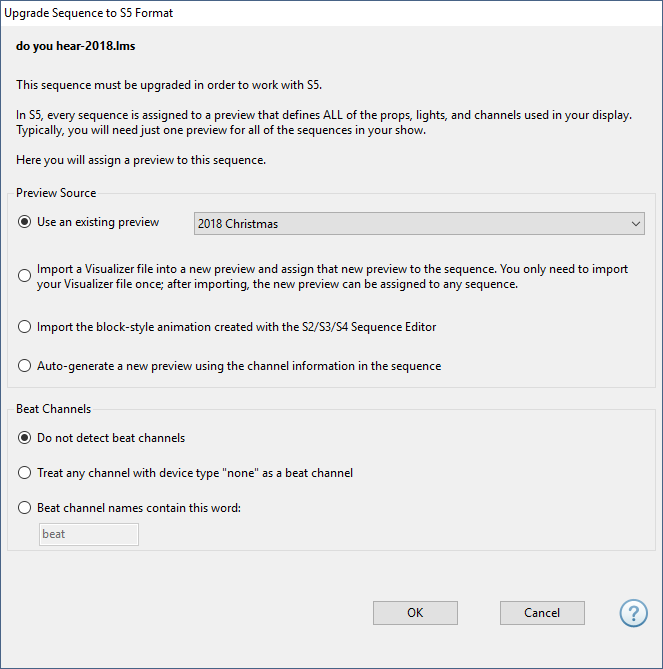
The Upgrade Sequence to S5 Format Dialog
The name of the sequence being upgraded is shown at the top, followed by some instructions. Below that you need to:
2.Decide how beat channels should be handled
3.Click OK to continue
If there were channels in the sequence being upgraded that did not exist in the preview, then those channels will get "archived". Archived channels cannot control lights, but they preserve the effects that were in the original sequence. You will get a message at the end of the upgrade process listing any channels that were archived. For more information on archived props, see the Archived Props and Manage Archived Props Dialog topics. If you ended up with some archived props after the upgrade, one thing you can do is to modify the preview that you used (add any props that were missing), and then try upgrading the sequence again.
Preview Source
S5 sequences require a preview - this is new to S5. A preview specifies all of the channels that will be used in the sequence (among other things). You can create a preview during the upgrade process or you can create one ahead of time. If you have more than a few controllers, you should strongly consider creating a preview ahead of time.
One preview can be associated with multiple sequences.

So if you had 3 sequences in your 2018 show that you are upgrading to S5, you only need one preview that will be shared with all 3 sequences:
•If you create a preview before you start upgrading the sequences, you only need to create one preview. You will select Use an existing preview as you upgrade each sequence.
•If you create a preview during the upgrade process, you only need to do that for the first sequence you upgrade. For the other sequences, you will select Use an existing preview and choose the preview you created while upgrading the first sequence.
These are the Preview Source options on the upgrade dialog:
•Import an S3 / S4 Visualizer file
•Import a block-style animation created with the Sequence Editor
•Auto-generate a new preview using channel information in the sequence
Use an existing preview
Choose this option if you have already created a preview -- where the channels in the preview match the channels in the sequence being upgraded. Select the desired preview from the drop-down list.
If the sequence being upgraded also has an S4 Pixel Editor file associated with it, the name of the preview associated with the Pixel Editor file will be shown below the radio button (your Pixel Editor previews were upgraded to S5 the very first time you ran the S5 Sequencer and will be listed in the Previews Window). If your Pixel Editor preview also defines all of the channels used in the Sequence Editor portion of the sequence, then go ahead select the Pixel Editor preview from the drop-down list. If not, you should cancel the upgrade process, go back and add those Sequence Editor channels to the preview, then restart the upgrade process.

Import an S3 / S4 Visualizer file
If you have created a Visualizer file that defines all of the channels in the sequence being upgraded, you can select this option. After clicking the "OK" button to close this dialog, you will be prompted for the location of the Visualizer file to be used.

A sample Visualizer file
Import a block-style animation created with the Sequence Editor
If the sequence you are upgrading has an animation in it that you created with the Sequence Editor, it can be imported into a preview. If there is no animation in the sequence file, then this option will be grayed out.

A sample animation in the Sequence Editor
Auto-generate a new preview using channel information in the sequence
As a last resort, you can have the upgrade process scan the sequence being upgraded and automatically generate a preview using the settings for each channel. The preview won’t look like your house, but channel information will be set correctly and it will allow you to get started with your sequencing right away.

A sample Sequence Editor file (left), and the corresponding auto-generated preview (right)
Beat Channels
Beat channels are new to S5. In the S4 Sequence Editor, when you wanted to represent the musical beat, you just used a regular channel to do that. In S5, beat channels are a separate row type in the grid. They are intended to hold sequence effects related to the beat of the music; however, you can put any regular channel effect anywhere you want in a beat channel. Beat channels can only be added to musical sequences.
You can use the options in the upgrade dialog to automatically convert channels in the sequence being upgraded to beat channels, or you can do it manually after the sequence is upgraded. If you choose to convert beat channels later, use the Manage Archived Props tool to convert channels in archived props to beat channels. From the upgrade dialog you can select:
•Treat any channel with device type "none" as a beat channel
•Beat channel names contain this word
Do not detect beat channels
This option skips the detection and conversion of beat channels during the upgrade process. Use this option if your sequence doesn't have any beat channels in it.
Treat any channel with device type "none" as a beat channel
When beat channels are used in the S4 Sequence Editor, they are usually created with no device type, as shown in the picture below. If you have a sequence where beat channels were created this way, then this option can be used to detect them and convert them to S5 beat channels.
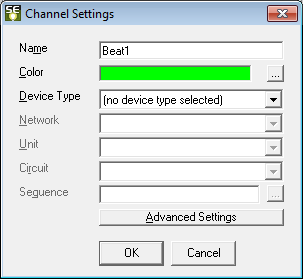
A channel with no Device Type
in the S4 Sequence Editor
Beat channel names contain this word
If the sequence being converted has beat channels with a special word in the channel name (e.g. "beat"), then this option can be used to detect them and convert them to S5 beat channels.