This tab on the Light-O-Rama Visualizer's Options dialog controls general Visualizer parameters including autosaving, name display, et cetera:
•When Deleting a Fixture or Prop
•Don't Show Corrupt File Warning
•Show CCR Pixel Order Numbering
•Ignore Missing Background Pictures
•Close Window (X) Stops Simulation
•Hide Names When Selection Active
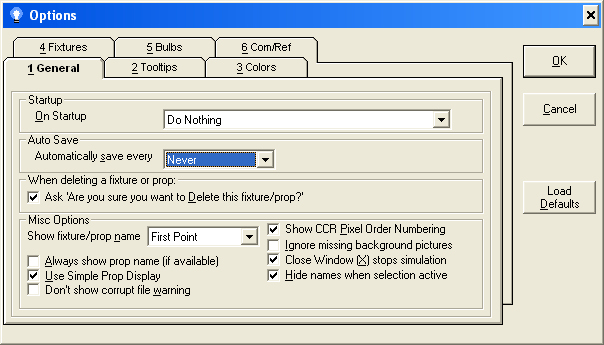
The General Options tab
On Startup
Controls the behavior of the Visualizer when it starts up. The options are: do Nothing, Show Open File Dialog, Automatically open last file.
Auto Save Every
By setting this field to something other than "Never", the Visualizer will automatically save a visualization file periodically.
When Deleting a Fixture or Prop
Controls if the system will prompt you before allowing a delete.
Show Fixture/Prop Name
By setting this field to something other than "None", the name of a fixture or prop will be shown on the main editor screen (in the drawing area).
The name displayed near an object is normally controlled by what mode the user is in: While in fixture mode, fixture names are displayed, and while in prop mode, prop names are displayed. Selecting this checkbox forces the Visualizer to always show the prop name if it is available, regardless of the mode.
Use Simple Prop Display
The object list can be set to display in two different ways while in prop mode:
•Normal: Every fixture is displayed in a two-line list, with the first line being the prop name and the second line being the fixture name.
•Simple: Only the prop name (or the fixture name if the fixture is not assigned to a prop) is displayed.
Don't Show Corrupt File Warning
The system digitally signs all editor save files. If a file is loaded with a signature that does not match, the system will warn the user that the file may be corrupted. Selecting this option ignores the error.
Show CCR Pixel Order Numbering
Along with the fixture name, the Visualizer can display the number of each pixel of a CCR. Pixel numbers are important, since the order of them is important for simulation. This option controls if that pixel number is displayed or not.
Ignore Missing Background Pictures
If selected, the system will not prompt the user if it cannot find the background graphics.
Close Window (X) Stops Simulation
Selecting this option means that if you attempt to close a simulation with the window's control box, only the simulation will stop and the application will remain active.
Hide Names when Selection Active
When enabled, whenever a fixture or prop is selected, all fixture/prop names are hidden.