As the name implies, Live Player is geared to controlling sequences at live events. Here you can create a cue list, and then click Play to start each cue at the appropriate time. It can also be used as a jukebox. Cue lists can be saved to disk and loaded back at a later time. Cue files have a file extension of LORCUE.
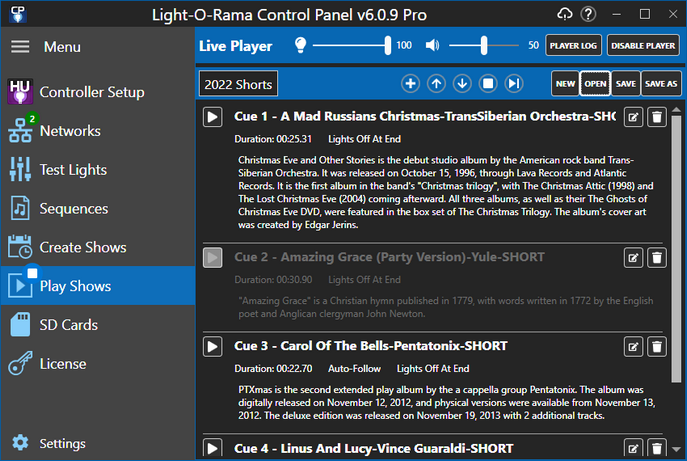
Controls in the heading (master dimmer, volume, etc) were covered in a previous section.
The Live Player logs every sequence that it plays to the Player Log.
The Second Row of the Heading
|
The cue list name. You can type directly in this box to change the name. Click the Save button after you are done. |
|
Adds a new cue to the list. It first prompts you to select the sequence file and then displays the Cue dialog. |
|
Changes the selected row to the one above. Skips inactive cues. |
|
Changes the selected row to the one below. Skips inactive cues. |
|
Stops playback immediately. |
|
Play next cue. If a cue is currently playing, it is stopped. Then playback starts on the cue after the selected one. |
|
Starts a new cue list. If changes have been made to the current cue list, you will be prompted to save it. |
|
Opens a previously saved cue list. |
|
Saves the current cue list. |
|
Saves the current cue list with a new name. |



Cue List Item
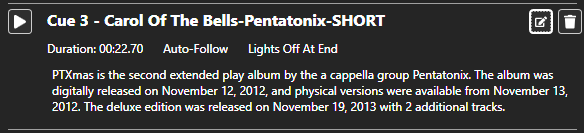
A cue that is not playing
Across the first line of the cue is:
•The button to play the cue
•The cue number and name
•The edit button. Click to open the Cue dialog.
•The Trash Can icon. Click to remove the cue from the list. This action cannot be undone.
The second line shows the sequence duration, followed by options that were enabled in the Cue dialog.
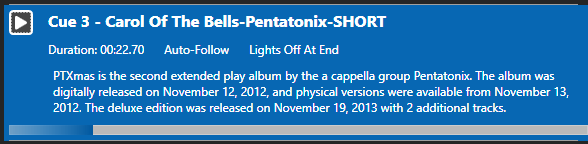
A cue item while playing
When the cue is playing a progress bar is shown at the bottom. You can click the cue's play button to restart the sequence.
The Cue Dialog
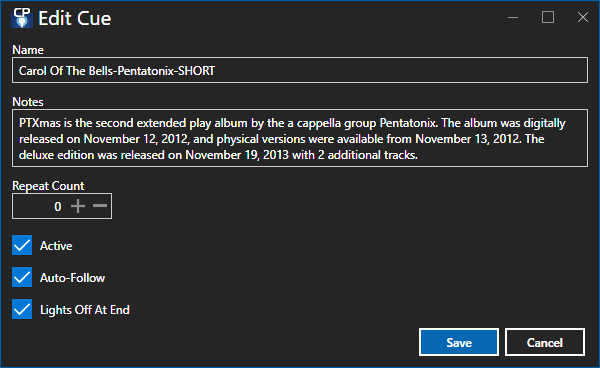
The Cue dialog
This dialog has the following fields:
•Name - this defaults to the name of the sequence, but you can change it if desired.
•Notes - the notes for the cue, for example when it should be started.
•Repeat Count - the number of times the sequence should be repeated. 0 means the sequence will be played once.
•Active - if checked the cue can be played. If unchecked, the cue will be skipped.
•Auto-Follow - if checked, once this cue finishes playing, the next cue in the list will automatically be started.
•Lights Off At End - if checked, lights used by this sequence will be turned off after the sequence finishes playing.