The Show dialog is reached from the Create Shows section of the Control Panel. It is used to create a show or to edit an existing one.

The Show dialog
Down the left side of the Show dialog is a menu. The top portion of the menu is used manipulate the content of the show -- which sequences get played and in which order. The lower portion of the menu is used to define the schedule for the show -- when it will be played. The last item on the menu is the Verifier, which performs some checks on the show and will display warnings if something needs adjustment.
A show consists of several sections. Each section serves a different purpose - for example, the "startup section" is a list of sequences that will be played when the show begins, while the "animation section" is a list of animation sequences that will be played throughout most of the show's duration (after startup and before shutdown). All sections are optional.
On the left side of the dialog, there is a menu item for each section. For details on each of the sections, please refer to the following:
After specifying the sequences in your show, you can continue down the menu and:
Editing A Playlist
Each section of the show has a playlist, except the Interactive section which consists of multiple playlists. A playlist is a list of sequences shown in the order that they may play. You can edit the playlist using the 5 buttons at the top right. Using them you can:
In addition to the information shown on the playlist, you can hover your mouse over a sequence name and a tool-tip will be displayed showing the sequence's full path.

Add A Sequence
To add a sequence to a section, click on that section's menu item, and then on the Add button at the top. This will prompt you for the name of the sequence that you want to add (you can selected multiple sequences here if desired).
Replace A Sequence
To replace one sequence with a different (keeping the same place in the playlist), select the sequence to be replaced by clicking on its name, then click the "Replace" button. This will prompt you for the name of the replacement sequence.
Remove A Sequence
Similarly, to remove an existing sequence in the playlist, select the sequence by clicking on its name, and then click the large "Remove" button. You can only remove 1 sequence at a time.
Change Sequence Order
A sequence can be moved up or down by simply dragging it with your mouse and dropping it in the desired position. You can also reorder sequences by clicking on a sequence name and then clicking the up arrow or down arrow button. This also works when multiple sequences are selected (use Ctrl-click or Shift-Click to select multiple items). This generally affects the order that the sequences will be played in, but not always: For example, in the musical section, you can select that the sequences will be played in the order listed, or in a random shuffle; if you choose the latter, it doesn't matter what order they are listed in. Similarly, in the animation section, you can select that the sequences be played simultaneously (as opposed to sequentially); if you do, their listed order does not matter.
Open the Sequence
To open a sequence in the Sequencer, simply double-click on it. Alternatively, you can right-click on the item and select Sequence File > Open from the pop-up menu.
Right-Click Context Menu
You can right-click on any sequence in the playlist to view a pop-up menu of additional actions. The pop-up menu consists of 3 items:
•The Sequence File sub-menu:
oOpen - opens the file in the Sequencer.
oOpen containing folder - opens the folder where the sequence is located in Windows File Explorer.
oCopy path to clipboard - copies the location of the sequence file to the clipboard

•The Media File sub-menu (not displayed for animation sequences):
oOpen - opens the media file is the user's default media player
oOpen containing folder - opens the folder where the media file is located in Windows File Explorer.
oCopy path to clipboard - copies the location of the media file to the clipboard

•The Copy playlist to clipboard command copies all items in the playlist to the clipboard. The clipboard content has 3 columns of data and is suitable for pasting into a spreadsheet. The 3 columns are:
oSequence name
oSequence path
oSequence length in seconds

Missing Sequence File
Sometimes a sequence file referenced by a show can get renamed, moved, or deleted. When this happens, a red document icon will be displayed to the left of the file name.
If the sequence is no longer needed in the show, you can remove the sequence. To point the entry to the new location for the sequence, use the Replace function.
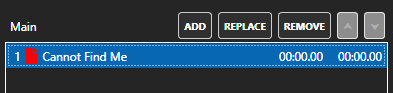
The sequence "Cannot Find Me" is missing
Missing Media File
Sometimes the media file associate with a sequence can get renamed, moved, or deleted. When this happens, a red music note icon will be displayed to the left of the file name.
If the sequence is no longer needed in the show, you can remove the sequence. To fix the sequence so it points to the correct media file, open it in the Sequencer, then select Sequence > Media File from the menu.

Media file is missing for the sequence "Bad Audio Path"
The Startup Section
When a show is started (at a time determined by the schedule), the sequences in its startup section will be played, one at a time, in order. After they all have finished, the main portion of the show will begin, consisting of the animation section and the main section.
You can control whether or not sequences in this section will automatically turn their lights off when they reach their end by setting the "Turn used lights off at the end of each sequence" checkbox.
If your Light-O-Rama software license is for the Advanced or Pro level, you additionally have control over whether this section (and the rest of your show) starts immediately at its scheduled time, or upon an input trigger (for example, when someone hits a "start" button). See "Show Startup Options" for details.

The Startup section, with 1 sequence
The Main Section
After a show's startup section has completed, its main section will begin (as will its animation section).
Only one sequence from the main section will play at a time. They can be played in the order listed in the playlist, or shuffled randomly. If shuffled randomly, you can also control two different aspects of how shuffling is done: Whether or not a sequence is allowed to be played a second time before all sequences have played once, and whether or not a sequence is allowed to play twice in a row (this latter does not apply if you have only one sequence in the musical section - it will definitely be played back-to-back).
Play will continue until the show is shut down (at a time determined by the schedule). If the sequences are to be played in the order listed, and the end of the list is reached before the show is to shut down, play will loop back to the first sequence in the list.
Optionally, a "cleanup sequence" can also be specified in the main section. If so, that sequence will be played immediately after the completion of any sequence in the main section, before the next one begins. Also optionally, a delay can be specified between songs.
You can control whether or not sequences in this section will automatically turn their lights off when they reach their end by setting the "Turn used lights off at the end of each sequence" checkbox.

The Main section, shuffled playback, with a 5 second delay between sequences
The Shutdown Section
When the end of a show is reached (at a time determined by the schedule), its animation section and musical section will end, and its shutdown section will begin. Sequences in the shutdown section will play, one at a time, in the order listed. After they all have completed, the show is truly finished.
You can control whether or not sequences in this section will automatically turn their lights off when they reach their end by setting the "Turn used lights off at the end of each sequence" checkbox.

The Shutdown section
The Animation Section
After a show's startup section has completed, its animation section will begin (as will its main section).
Sequences in the animation section can be played concurrently or sequentially. If you choose to play them sequentially, the first in the list will be played, and when it finishes, the next will be played, and so forth. After all of them have been played, the first in the list will be played again. This pattern will continue until the show is shut down (at a time determined by the schedule).
If they are played concurrently, all of them will be played at once, and whenever one reaches its end, it will simply loop back to its beginning and keep playing. Again, this will continue until the show is shut down.
You can control whether or not sequences in this section will automatically turn their lights off when they reach their end by setting the "Turn used lights off at the end of each sequence" checkbox.
Only animation sequences can be used in the animation section of a show.

The Animation section, with 3 sequences that will play concurrently
The Background Section
When a show is started, all of the sequences in the show's background section will start playing, simultaneously. When such a sequence reaches its end, it will simply loop back to its beginning and keep playing. All of these sequences will continue playing in this way until the show ends (also at a time determined by the schedule).
If your Light-O-Rama software license is for the Advanced feature level, you additionally have control over whether this section (and/or the rest of your show) starts immediately at its scheduled time, or upon an input trigger (for example, when someone hits a "start" button). See "Show Startup Options" for details.
Only animation sequences can be used in the background section of a show.
Channels controlled by a background sequence should be separate from the channels used by other sequences. This means that sequences in the background section should use a different preview than sequences in the other sections.

The Background section, with a single sequence
The Interactive Section
Some Light-O-Rama controllers can be used not only to control lights, but also to accept input from people, causing Light-O-Rama to play sequences on demand. For example, you could have a big red button as part of your display, which when pressed, will cause Light-O-Rama to start playing a particular song or songs.
This is controlled through the interactive section of the show. You can use this section to specify what sequences are to be played when particular inputs are triggered. Please see the separate topic on interactive groups for details.
Note that, unlike for the other sections of the show, the "Interactive" section actually lists groups of sequences, rather than directly listing sequences. Again, please see the page on interactive groups for details on how to create and modify these groups of sequences.
You can control whether or not sequences in this section will automatically turn their lights off when they reach their end by setting the "Turn used lights off at the end of each sequence" checkbox, but unlike in other sections of the show, this setting is controlled individually for each interactive group, rather than for the section as a whole.

The Interactive section, with 1 group
Schedule Dates & Times
A show's schedule is composed of schedule entries specifying when the show will run.
A newly created show does not have any schedule entries, and a show without schedule entries will NOT RUN. So it is important that you visit this section when creating a show!
A schedule entry specifies 3 things:
•When the show will play. This consists of a start time and an end time of your choosing. The time range could be 5pm to 10pm; or it can cross midnight, starting at 8pm and ending at 2am for example.
•What days of the week the show will play. The Add button will default to running 7 days per week. The Add Weekdays button will default to running Sunday through Thursday. And the Add Weekend button will default to running on Friday and Saturday.
•The date range for the show. After pressing the Add, Add Weekdays, or Add Weekend buttons, the start date will default to the current day and the end date will not be populated, meaning it will run on the specified days of the week from now to eternity.

A single schedule entry that will run from 5pm to 10pm on 31 Oct 2022
The schedule above will run from 5pm to 10pm on a single day: 31 Oct 2022. Even though all days of the week are specified, the date range will constrain the schedule to a single day. Since 31 Oct 2022 is a Monday, this schedule would run the same if only Monday were checked. If Monday were not checked, the show would not run at all
To remove a schedule entry, click the trash can icon on the right edge of the entry. You can remove all entries at once by clicking the "Remove All" button at the top right.

A single schedule entry that will run from 5pm on 31 Oct 2022 until 2am on 1 Nov 2022
Here is a similar schedule, except the end time is not until 2am the following day (Tuesday 1 Nov 2022). Note that this will run as expected until 2am on Tuesday 1 Nov 2022 even though Tuesday is not checked and the end date is 10/31/2022. That is because the date range and the days of the week constrain the start time, not the stop time.

The schedule after pressing the "Add Weekdays" and "Add Weekend" buttons
You can create a quick schedule by clicking the "Add Weekdays" button and then the "Add Weekend" button. The resulting schedule is shown above. It will run from 5pm to 10pm Sunday through Thursday, and from 5pm to 11pm on Friday and Saturday. Because there are no end dates specified, this schedule will play at the schedule times whenever the Show Player is active.
Show Startup Options
If your Light-O-Rama software license is for the Advanced or Pro level, you have more control over exactly how your show will start up. Select the Options section, where you can choose from:
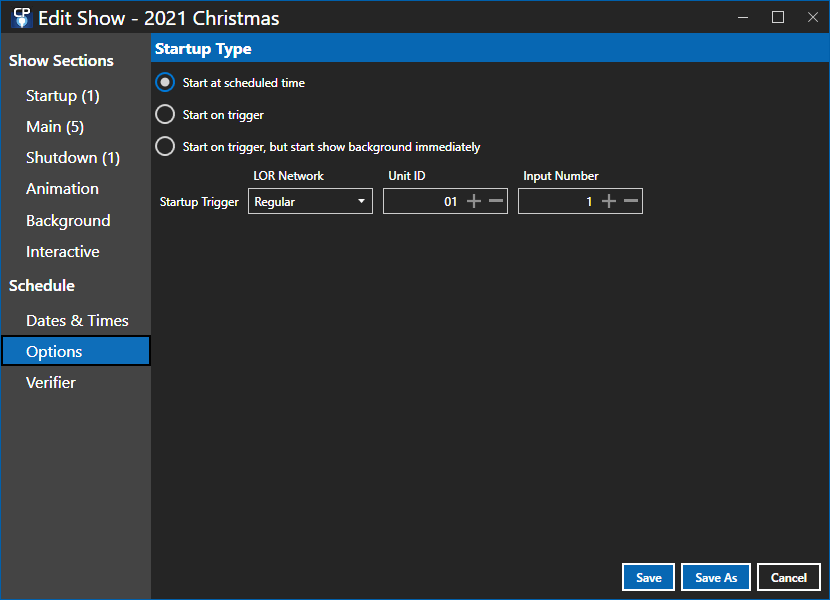
Show Options section
Start At Scheduled Time
In this mode, your show will begin immediately at its scheduled start time.
Start On Trigger
In triggered startup mode, your show will start when a specified circuit on a specified Light-O-Rama controller is triggered (as long as it is triggered during the show's scheduled run time). For example, you could hook up a big red button labeled "Start the Show" to a controller. Please note that triggers are not supported on LOR Enhanced networks.
Immediate Background Startup
In immediate background startup mode, your show's Background section will start immediately at the show's scheduled start time, but the rest of the show will not start until a specified circuit on a specified Light-O-Rama controller is triggered (as long as it is triggered during the show's scheduled run time). Please note that triggers are not supported on LOR Enhanced networks.
Verifier
In the Verifier section, you can check your show (and the sequences used in the show) for issues that might cause problems when it is played. Just click the "Check Show" button to get started.
When all checks have finished, you can refer to the List of Verifier Messages to find out more about a particular message.
