The “Copy” command is very helpful in creating a collection of props that all look the same, such as a series of arches or mini-trees. This opens a window where you can specify how many copies should be made. If the source name has a numeric suffix, then that number will be automatically incremented for each copy. After the “Make Copies” button is pressed the new copies will be displayed
Here is the process for copying a prop:
•Select the prop in the item list that will be the source of the copy. For props with a numeric suffix, this prop’s name should end with “1”, “01”, “001”, “(1)”, “(01)”, or “(001)”. If you have created 5 arches and then decide you need more, you can select the last one (e.g. “Arch 05”) and the Copy command will continue your number sequence from there.
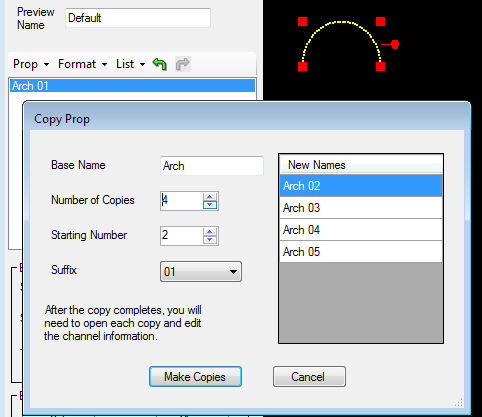
•Select “Prop”, then “Copy” from the menu. This will open the Copy window. See the picture below for an example.
•The “Base Name” field should already be filled in for you. If you are creating a non-numeric sequence such as “Left”, “Center”, “Right”, then you might want to edit the base name to remove the suffix in the source prop’s name.
•Select the number of copies to make. The New Names list on the right will automatically update as this value is changed.
•If the source prop’s name has a numeric suffix, then the “Starting Number” field should be set automatically.
•The “Suffix” field should be set automatically, but can be changed if desired. For example, if your source prop does not have a numeric suffix, but you want the copies to be numbered, then change this field to the desired number format.
•You can change the automatically generated names by double-clicking any entry in the “New Names” list and making edits as desired.
•After making all of your edits, click the “Make Copies” button. This will close the Copy window and the new copies should appear in the preview design window.
•The channel information in the copies will be set automatically -- incremented from the source prop. However, after the copy completes, you should double-click on the name of each copied prop in the list and when the Prop Definition window opens, verify that the channel information for that prop is correct.
The picture below shows the Copy command being applied to a prop named “Arch 01”. The numeric suffix is automatically detected and the fields set accordingly. The only action is to set the desired number of copies (4 in this example).
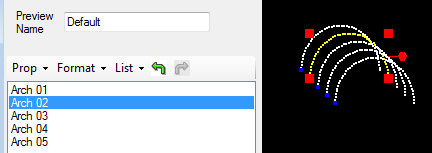
Result of making 4 copies