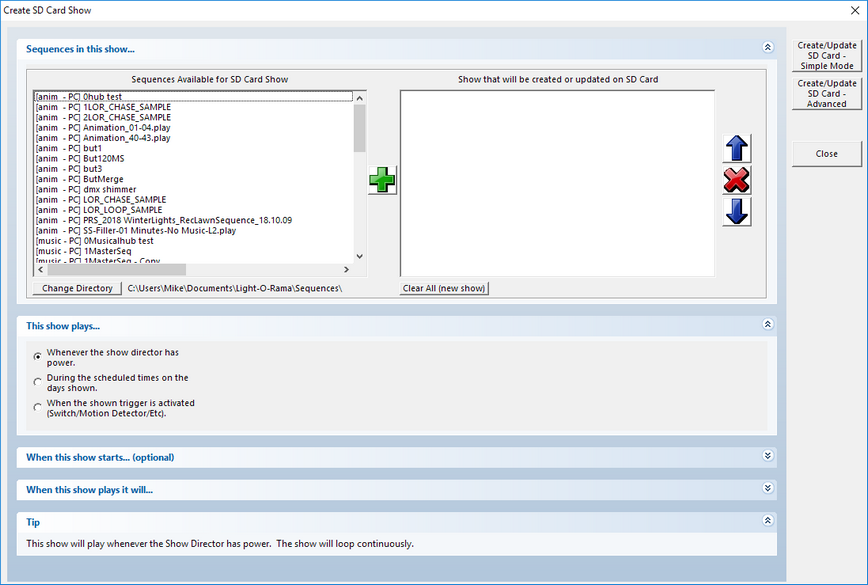
This is the Main Screen of the SD Card build process for both editing and new shows. Here you will add/edit/delete the sequences for the show you selected as well as specify any options.
There are several important things you need to be aware of when using SD cards:
For NEW SD card shows:
•Once an SD card is created, there is no indicator on the card if it is for a Deluxe MP3 director, or a Mini Director. Even if you edit an SD card and turn ON scheduling, the Mini director will still run the show whenever there is power. This is because the Mini Director does not have real-time clock hardware. Mini Directors will ALWAYS ignore a schedule
For SD card shows that are being edited:
•A * in front of a sequence name on the SD card side means the sequence cannot be found in the folder on your computer where it was originally created from. You may have deleted the sequence on your computer.
•For each sequence on the SD card, Hub will verify that sequence still exists in the same folder as it did when the SD card was created. The * in front of a sequence name on the SD card side means the sequence can not be found. If you move that sequence, even to a folder that is currently displayed on the right, hub will not be able to update the sequence when you write the SD card. To avoid confusion you should always keep your sequences in the Light-O-Rama Sequences directory.
•For any sequence with a * on the SD card side, if you remove that sequence from the SD it is lost. In order to re-create that sequence you MUST have the original sequence. You can still move the sequence in the show, or duplicate it on the SD card, but once removed it is gone. Before removing, you will be warned and asked if you really want to remove the sequence or not.
Sequences in this show...
Here you will be able to add and change the order of sequences to be built for your show
On the left side are all of the sequences that are available on your computer in the specified directory. If your sequences are not located in your Light-O-Rama data directory, you can press the 'Change Directory' button to move to another folder on your computer. It is highly recommended that you keep your sequences in the Light-O-Rama sequences directory which was created for you when the software was installed. If you did not change the location it will be My Documents\Light-O-Rama\Sequences.
Before the sequence name, you will see a few identifiers showing what kind of sequence and where the sequence is located. Sequences displayed with 'anim' are ANIMation sequences (.LAS). Sequences with music are MUSICal sequences (.LMS). The next identifier shows if the sequence is available on the PC or if it is only available on the SD card. If you are editing an existing show you may see a (*) as well. Please read the section above titled 'There are several important things..."
Select one or more sequences on the left and press the "+" button. The sequences will then be added to the show you are creating on the right side. You can duplicate a sequence onto the SD card as many times as you like up to the maximum number of sequences allowed in a show: 99.
To remove a sequence from the show, select it on the right side and press the "X" button. This removes the sequence from the show, but does not delete the sequence from your computer.
To change the order of sequences that are played in your show, select a sequence on the right and use the UP or DOWN arrow buttons.
For most users, the rest of this screen can be ignored and the 'Create/Update SD card - Simple Mode button can be pressed. This will create a show that is identical to the show produced by the old Simple Show Builder. If you are ever unsure exactly how your SD show will perform, please take a look in the 'TIP' section at the bottom of this screen (you may need to scroll down). The tip section will tell you in English exactly how this particular show will execute.
Additional Processing Instructions
LOR Hub can create complex SD card shows should you need them. These options are broken down into 3 additional sections: This Show Plays, When This Show Starts (optional), and When this show plays it will. The most used options (A show that runs whenever the director has power, loops continuously until it is powered off, and has no start sequence) is set as the default. Please remember that not all show directors will support all the options shown here. For example, Mini Directors can not be used with a schedule so that option will not be available.
This Show Plays...
This section gives three main options for when the show will play: "plays anytime powered", "plays during scheduled time", and "plays when triggered". Additionally, you can specify that the show cannot be interrupted by input triggers, even if other shows are set up to start on those triggers.
Selecting "plays anytime powered" will cause the show to run whenever the MP3 director is powered on.
Selecting "plays during scheduled time" allows you to specify a time or times when the show should play. Up to nine shows can be downloaded to a controller, and each will be assigned a number between 1 and 9. If two shows are scheduled for the same time, the lower numbered show will be played.
Selecting "plays when triggered" will cause the show to start whenever some external trigger happens (such as a circuit being closed or a motion detector being tripped). Please remember that if you select this option, the 'trigger' to be used is the same as this show number. For example, if this is Show 4, then the 4th trigger port on the director will be used.
A normally open switch has its contacts open until you activate it, at which point they close; a normally closed switch has its contacts closed until you activate it, at which point they open. Most switches are normally open; motion detectors, however, are typically normally closed. This is because they are often used in security systems, where it is important to notice that a wire has been cut.
Setting the Schedule (for Deluxe Show Directors only)
If you have a Deluxe Show Director, you can also optionally set a schedule for when this show should run.
•To create a show that runs whenever the MP3 director has power (and the card is inserted), the button in the schedule section should say 'Schedule Ignored'.
•To create a show that runs on a schedule, press the button. The button will then say 'Run the Show on this Schedule", and the days/times will be enabled.

To change the scheduled start/stop time, click on the times under the day you wish to change. The change time dialog will then be shown:
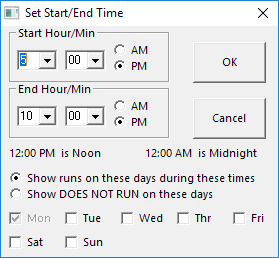
There are 2 main options here. If you do NOT want the show to run on the selected day,select 'Show does not run on these days". Otherwise select the other option.
For days that you have enabled, select the start and end time you desire.
If you would also like to quickly set other days to the same schedule, or to not run at all, click the boxes at the bottom. The day you initially clicked is always selected and can not be un-selected.
When this show starts...
For some show types, you will be able to specify a 'Starter' sequence. A starter sequence is always optional. If you use this option the sequence you specify will be played once and only once every time the show starts up, before the other sequences. This is most useful if you selected that the show should loop continuously. For example, a show with a start sequence and three sequences in the showlist will, when "loop continuously" is turned on, first play the start sequence, then the first sequence of the showlist, then the second, then the third, and then back to the first in the showlist - not back to the start sequence.
Both musical sequences and animation sequences can be used as start sequences.
When this show plays it will...
This section allows you to specify options controlling how the show will play.

There are 4 main selections:
Loop Continuously: Once this show is started it will play all sequences in order from the top to the bottom and then start over at the top. The show will stop when power is removed, or the scheduled end time occurs.
Play Once from Start to End then stop: Once this show is started it will play all sequences from the top to the bottom, then stop. While it can be used with any show, this is typically for triggered shows.
Repeat Every (60,30,15,10 minutes): Once this show is started it will play all sequences from the top to the bottom then stop. At the time specified, the show will start again from the top.
| Play the Next Song in the List: Only available for Triggered shows. The first sequence in the list will play, then stop. When triggered again the NEXT sequence will play then stop. At the end of the list the next trigger will run the first sequence again.Note: | Round Robin play can only be used G3 or newer MP3 directors with Firmware versions that support it (For G3-5.34 or higher) |
If you selected 'Play Once from start to end then stop', or 'Repeat Every', you can also specify what your lights do when the show is not running.
ON: The lights are turned on (note: Pixel Controllers may not support this command)
OFF: The lights are all turned off
Running a Filler Sequence: Choosing this option will allow you to select an animation sequence. When the show is not running, this sequence will loop continuously until the next actual show starts/
Writing the SD Card
Once you are satisfied with the sequences to be created on the SD card as well as their order and any options, press either Create SD Card - Simple Mode or Create SD Card - Advanced Mode.
Simple mode will create an SD Card for 90% of situations. It will use a single port of your MP3 director at a default speed that should work with all controllers and sequences.
Advanced Mode allows you to customize how the SD card will be written. You should use advanced mode if your show contains pixels, DMX channels, or Intensity Files (Enhanced LOR protocol), or you are using a multi-port MP3 director.
While writing the SD card, you will see the SD Card status screen:
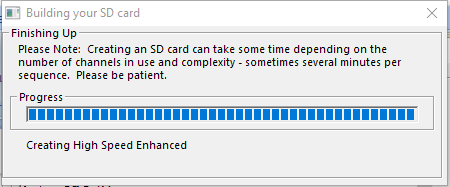
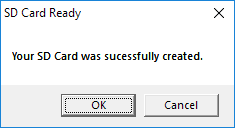
It may take several minutes per sequence to create your SD card. Once complete, you will see this message: